

Xray and Zephyr Test Management Integration
VibeTester integrates with your preferred test management tools. Generated test cases can be automatically created in Xray, Zephyr, or Zephyr Essentials.
Alternatively, you can configure Jira itself to store generated cases directly in a Jira issue type.
All credentials are securely stored in Jira secret storage.
If you’d like support for another test management tool, please contact us at support@assertthat.com.
Xray Integration
Section titled “Xray Integration”To connect to Xray:
-
Click Add Integration.
-
From the Tool Name dropdown, select Xray.
-
Enter the following:
-
API Client ID
-
API Secret
-
Region - Specify which Xray region to connect to. Further details can be found here
-
-
Click Add to confirm the credentials.
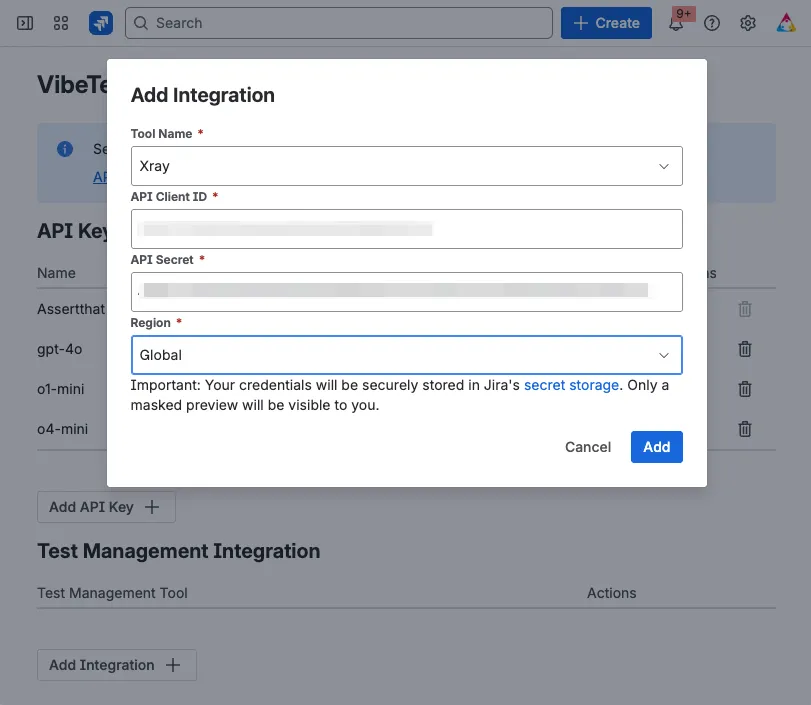
Note to Generate Xray API keys go to:
Settings->Apps->Xray->API Keys
Zephyr Essentials Integration
Section titled “Zephyr Essentials Integration”To connect to Zephyr Essentials:
-
Click Add Integration.
-
From the Tool Name dropdown, select Zephyr Essentials.
-
Enter your Access Token.
-
Click Add to confirm and store the token.
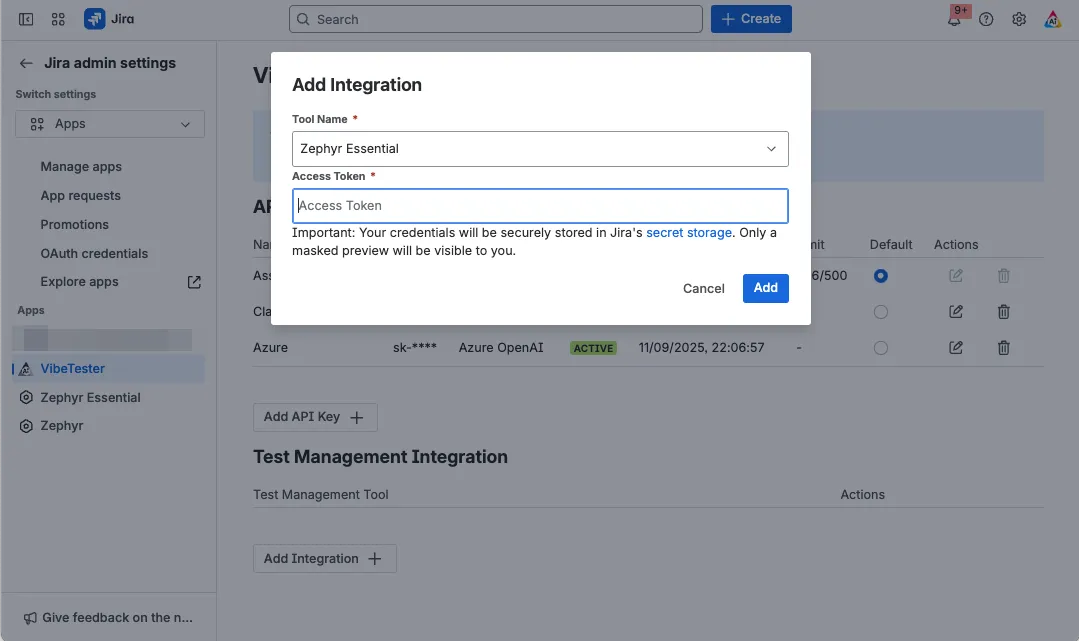
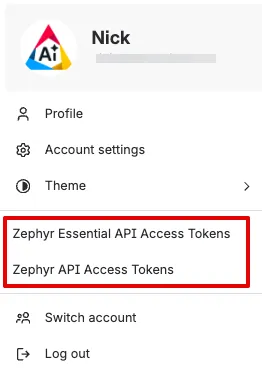
Your access token can be obtained by clicking on your profile in the top right corner in Zephyr and following the Access Tokens option.
Zephyr Integration
Section titled “Zephyr Integration”The steps for Zephyr are the same as Zephyr Essentials:
-
Select Zephyr from the dropdown.
-
Enter your Access Token.
-
Enter Region, specify which Zephyr region to connect to. Further details can be found here
-
Click Add to confirm and store the token.
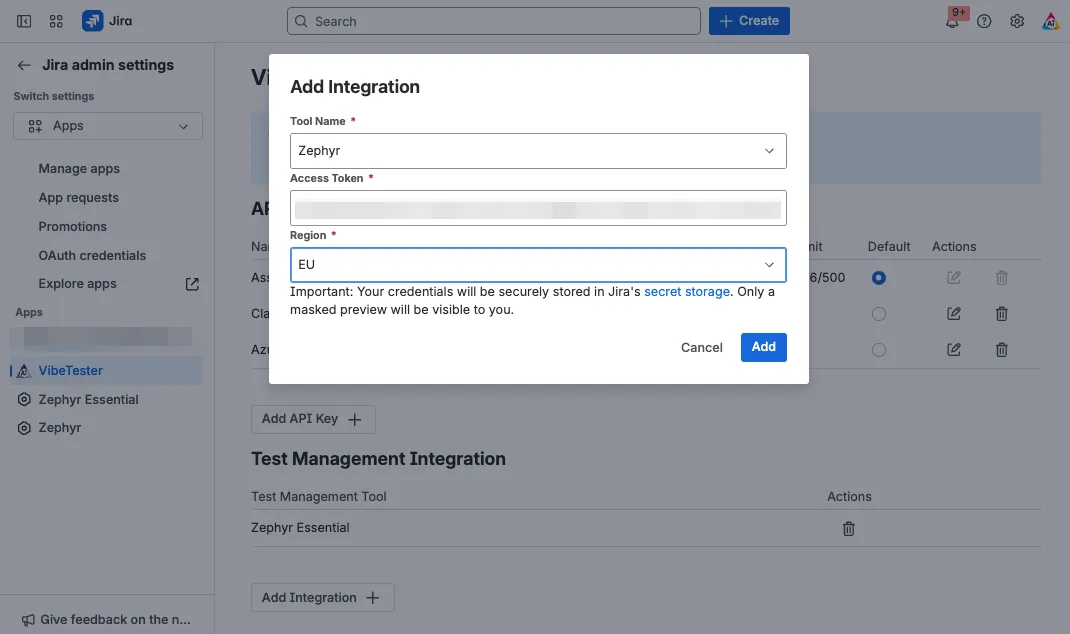
Your access token can be obtained by clicking on your profile in the top right corner in Zephyr and following the Access Tokens option.
Jira Integration
Section titled “Jira Integration”VibeTester can also create test cases directly into Jira without using an external test management system.
To configure Jira integration:
-
Go to Project Settings.
-
From the Test Management dropdown, select Jira.
-
Select the issue type where you want generated test cases to be created.
More information can be found on the Project Settings documentation page.
Next Steps
Section titled “Next Steps”After setting up your integrations, go to Project Settings to configure and enable test management integration on a project-by-project basis.