

API Keys Management
VibeTester integrates with leading AI providers: OpenAI, Claude (Anthropic), and Azure OpenAI.
Each integration requires you to add and validate an API key. Keys are securely stored in Jira secret storage and never exposed in plain text.
OpenAI
Section titled “OpenAI”To connect to OpenAI:
-
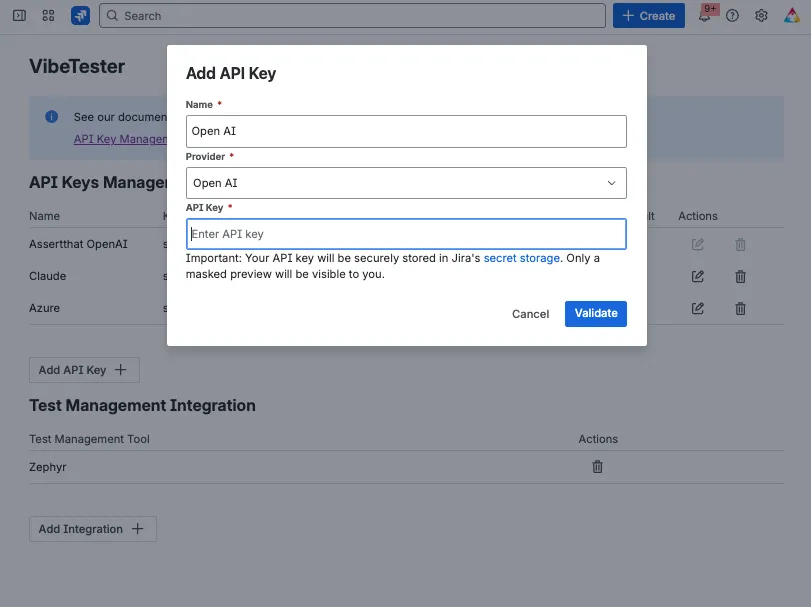
Click Add API Key.
-
Enter the following fields:
-
Name: a friendly name for this connection
-
Provider: select OpenAI from the dropdown
-
API Key: paste your OpenAI key
-
-
Click Validate to confirm the key is working.
-
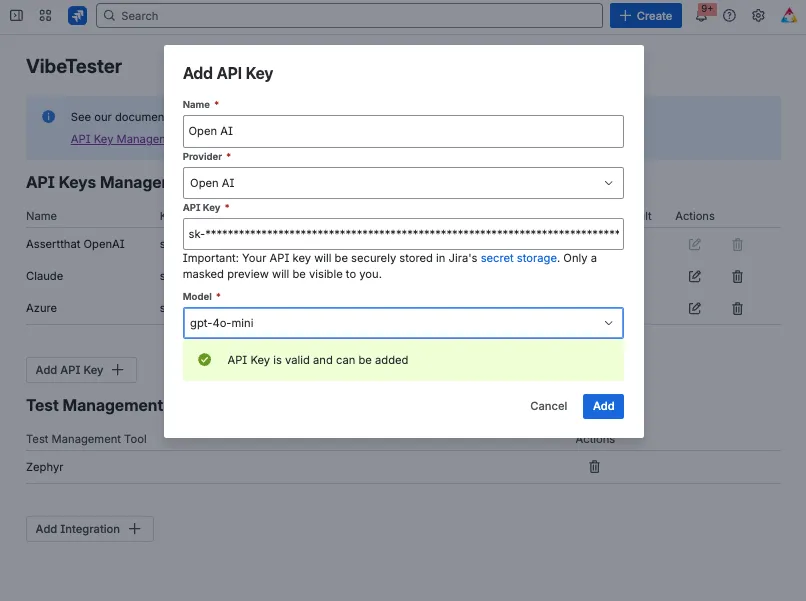
When validation succeeds, you will be given the option to select Model, then click Add to store the details.
Claude (Anthropic)
Section titled “Claude (Anthropic)”To connect to Claude:
-
Click Add API Key.
-
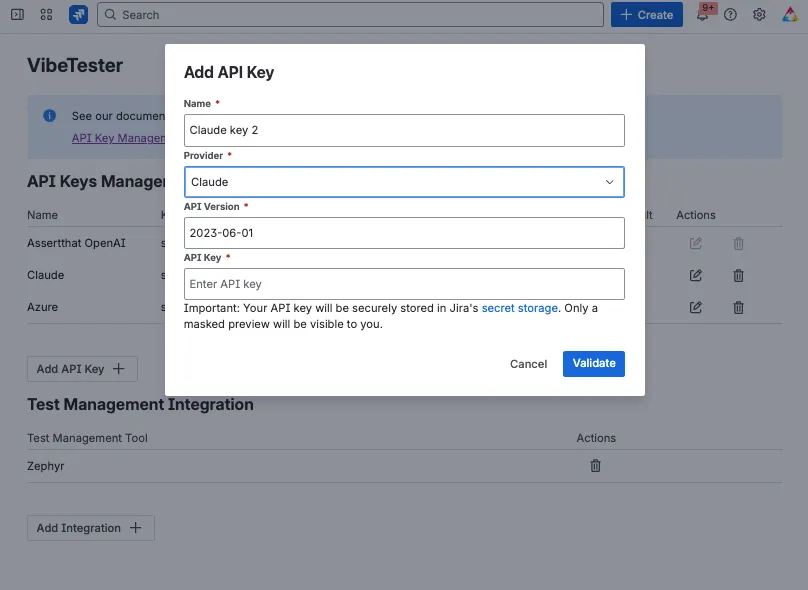
Enter the following fields:
-
Name: a friendly name for this connection
-
Provider: select Claude from the dropdown
-
API Version: enter the API version (https://docs.claude.com/en/api/versioning )
-
API Key: paste your Claude key
-
-
Click Validate to confirm the key is working
-
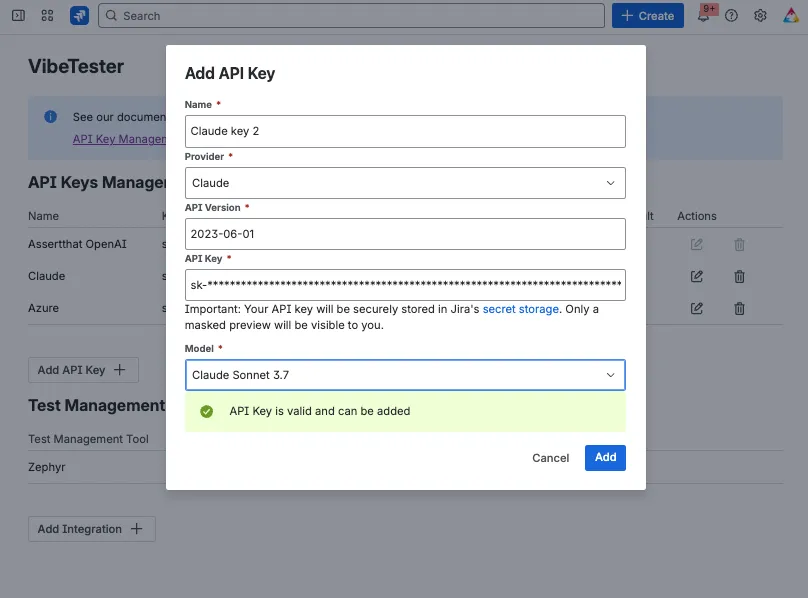
When validation succeeds, you will be given the option to select Model, then click Add to store the details..
Azure OpenAI
Section titled “Azure OpenAI”To connect to Azure OpenAI:
-
Click Add API Key.
-
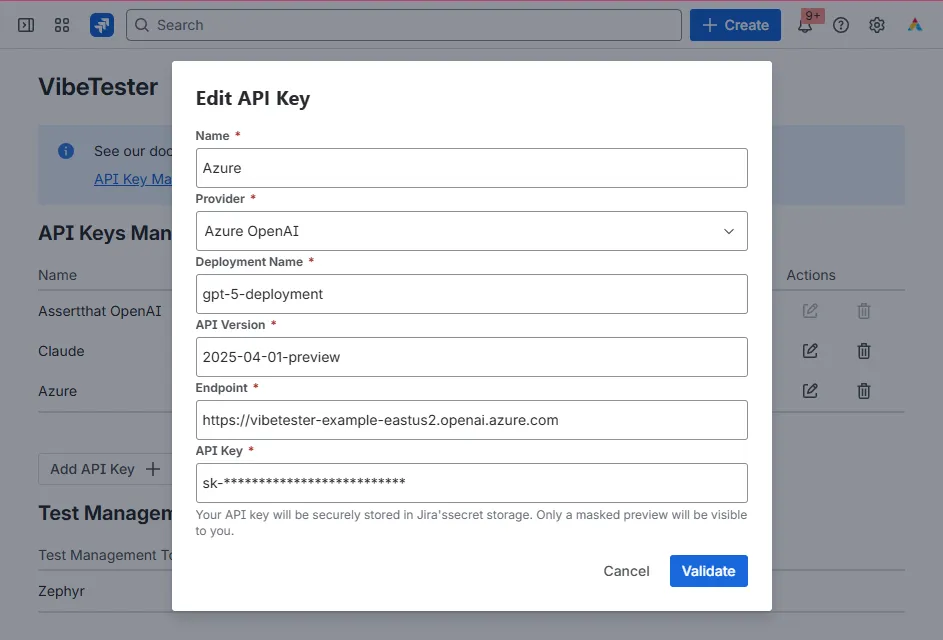
Enter the following fields:
-
Name: a friendly name for this connection
-
Provider: select Azure OpenAI from the dropdown
-
Deployment Name: the Azure deployment ID
-
API Version: enter the API version
-
Endpoint: your Azure OpenAI endpoint URL
-
API Key: paste your Azure OpenAI key\
-
-
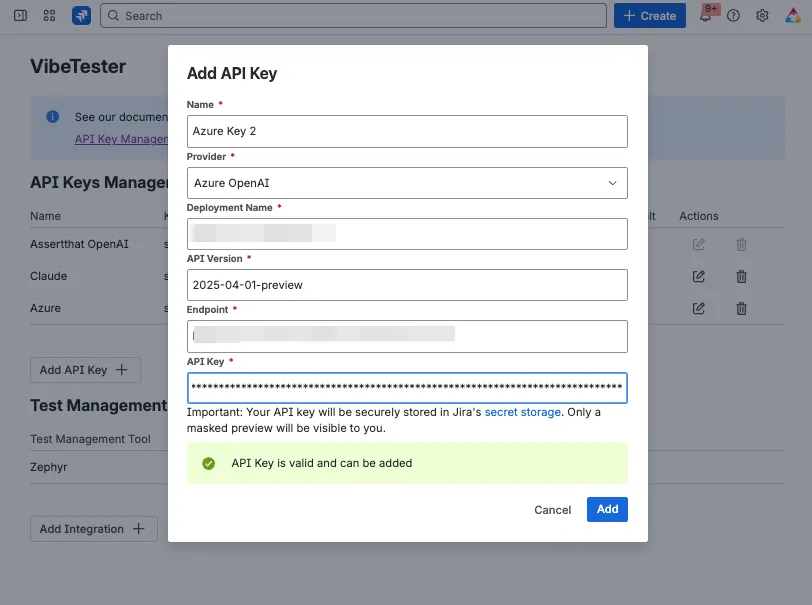
Click Validate to confirm the key is working.
-
When validation succeeds, click Save to store the key.
Next Steps
Section titled “Next Steps”Once your API keys are configured, proceed to set up your Test Management Integrations (e.g., Xray or Zephyr or Zephyr Essentials) so that generated test cases can be created directly in your chosen test management system.