

App Settings (including LLM and Test Management Integration)
The VibeTester (App Settings) page is where Jira administrators configure system-wide connections for AI providers and test management systems.
These settings apply to all projects that use VibeTester.
Accessing VibeTester (App Settings)
Section titled “Accessing VibeTester (App Settings)”-
In Jira, go to Settings → Apps.
-
Select VibeTester from the list.
-
You will see two main sections:
-
API Keys Management (for AI providers)
-
Test Management Integration (for test management systems)
-
1. API Keys Management
Section titled “1. API Keys Management”This section manages connections to AI providers such as OpenAI.
Add an API Key
Section titled “Add an API Key”-
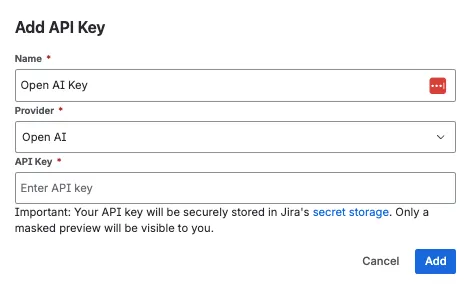
Click Add API Key.
-
Provide the following information:
-
Name – a friendly label for the key (e.g., OpenAI – Production)
-
Provider – select the AI provider (e.g., OpenAI)
-
API Key – paste the API key provided by your AI service
-
-
Save the key.
-
Use Test Connection to verify.
2. Test Management Integration
Section titled “2. Test Management Integration”This section manages connections to test management tools such as Xray and Zephyr.
Add an Integration
Section titled “Add an Integration”-
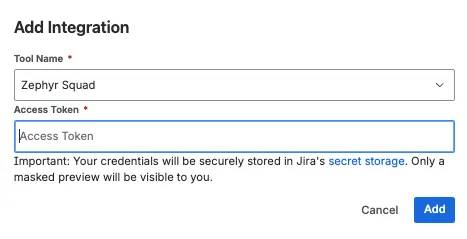
Click Add Integration.
-
From the dropdown, select the Tool Name (e.g., Xray, Zephyr).
-
Provide the required API details (fields may vary depending on the tool):
-
API URL
-
Access Token / Username & Password
-
Project Mapping (if applicable)
-
-
Save the integration.
-
Use Test Connection to verify.
3. Troubleshooting VibeTester (App Settings)
Section titled “3. Troubleshooting VibeTester (App Settings)”-
❌ Error: Invalid API Key → Re-enter key, check for extra spaces.
-
❌ Connection Failed → Verify API URL and credentials.
-
❌ Sync Not Working → Ensure correct project mapping in the integration.
For additional issues, see FAQ & Troubleshooting.
Next Steps
Section titled “Next Steps”-
Configure Project Settings to select Jira fields and define Test Case Generation Rules.
-
Generate your first test cases directly on the Issue Page.