

Generate scenarios from a user story
AssertThat’s AI scenario generation allows you to automatically create BDD test scenarios directly from your Jira user story. The AI reads your issue title and description and produces a set of structured Gherkin scenarios for you to review before anything is saved to your project.
💡 Human in the loop — no scenarios are saved automatically. Every generated scenario must be explicitly accepted before it is added to your project. You can also edit or regenerate steps before accepting.
Prerequisites
Section titled “Prerequisites”Before using AI scenario generation, ensure that:
-
AI has been enabled globally — see API Keys Management for AI Providers
-
AI scenario generation has been enabled for your project — see Enabling AI on a Project
Step 1: Click Generate Scenarios
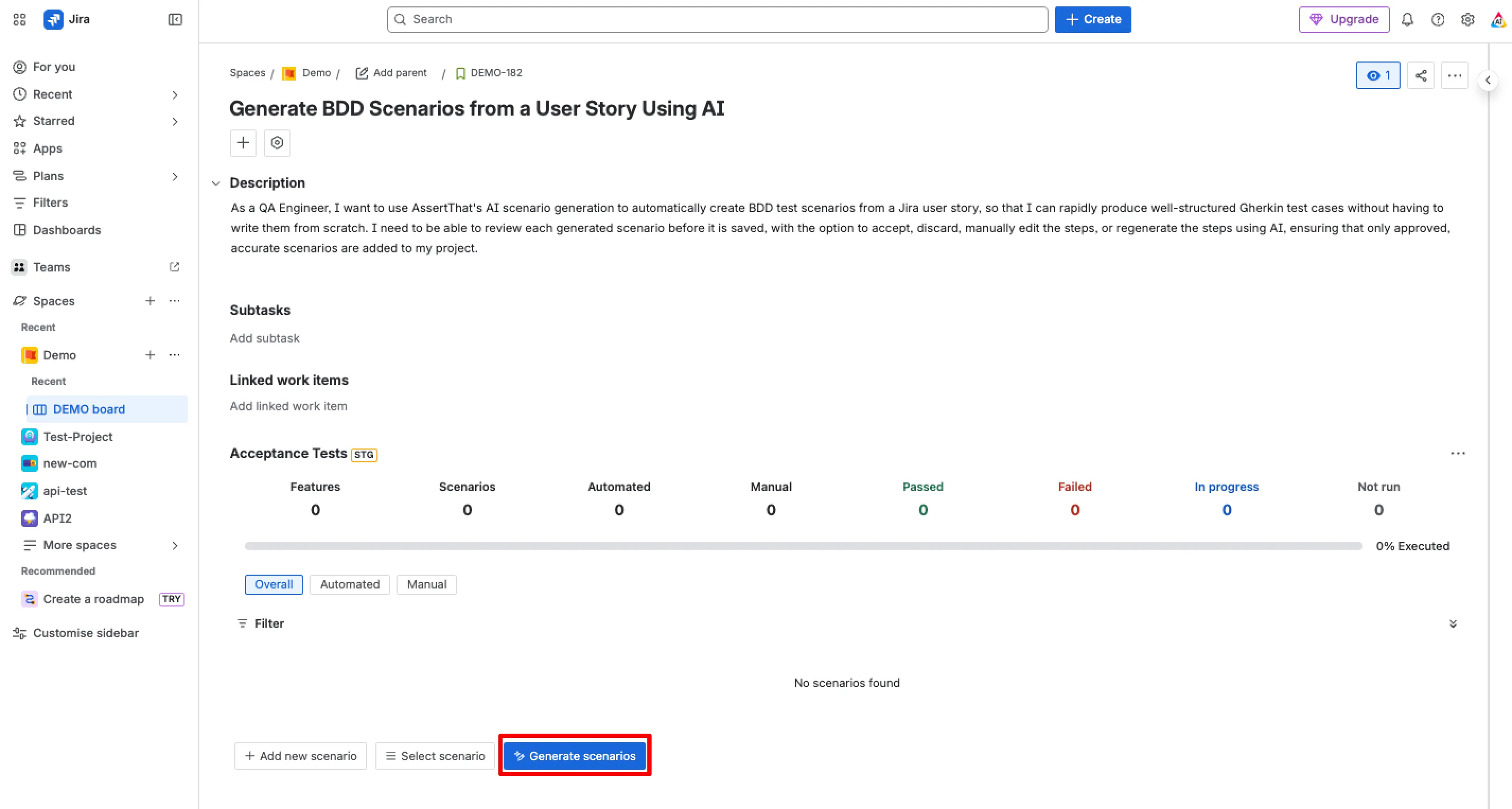
Section titled “Step 1: Click Generate Scenarios”Navigate to your Jira issue. In the Acceptance Tests panel, click the ✦ Generate scenarios button at the bottom of the panel.
Step 2: Enter a Feature Name and Optional Context
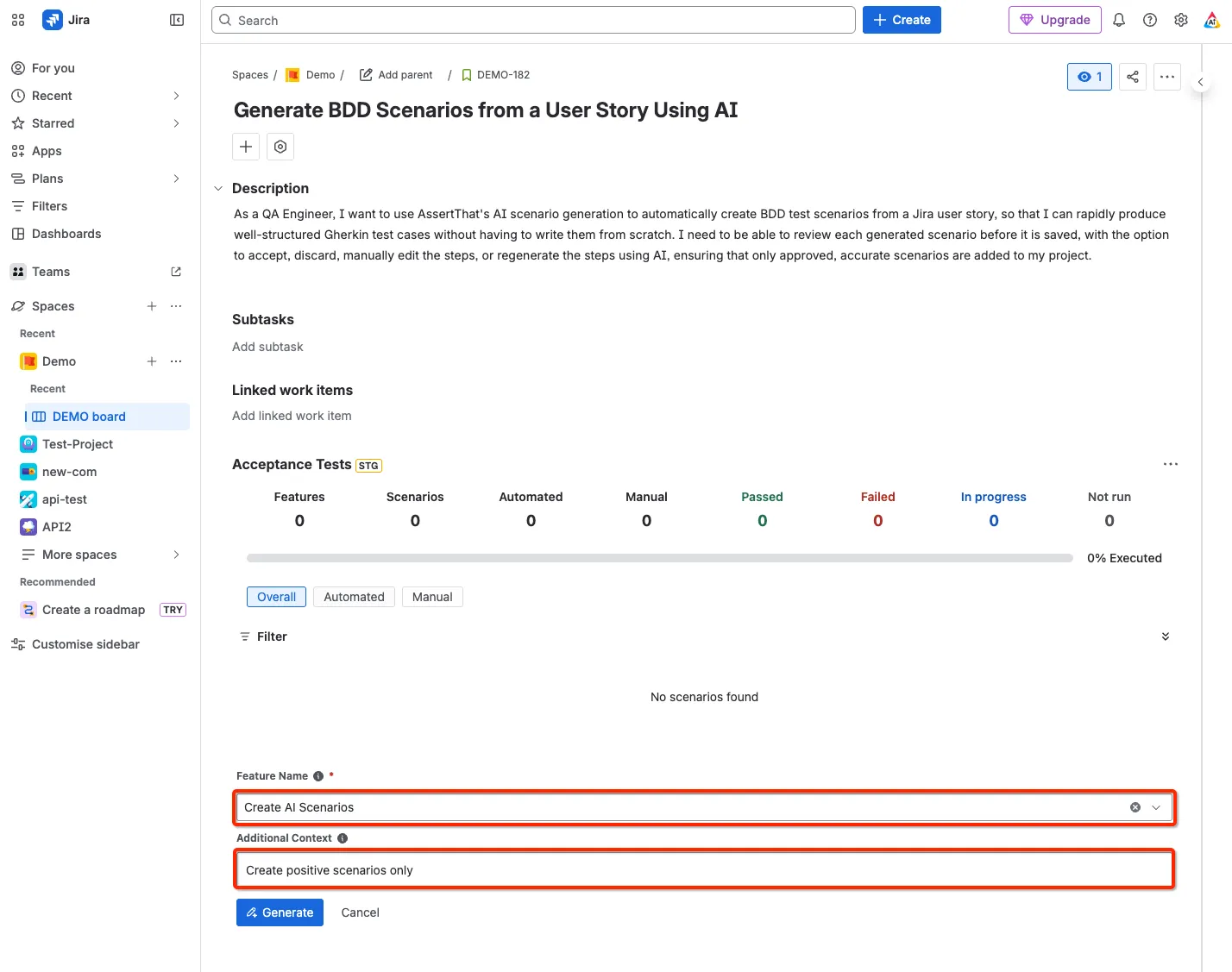
Section titled “Step 2: Enter a Feature Name and Optional Context”Two fields will display below the scenario list:
-
Feature Name (required) — enter a new feature name or select an existing one from the dropdown. The generated scenarios will be grouped under this feature.
-
Additional Context (optional) — use this field to guide the AI, for example by specifying “create positive scenarios only” or focusing on a particular aspect of the story.
Once ready, click ✦ Generate.
Step 3: Wait for Generation to Complete
Section titled “Step 3: Wait for Generation to Complete”AssertThat uses an advanced agentic workflow to produce your scenarios. Rather than generating output in a single pass, the AI runs a multi-stage Author → Critic → Rewriter process — drafting scenarios, evaluating them for quality and consistency, and refining them before presenting them for your review. This takes a few moments but ensures the generated test cases are well-structured and ready to use.
Step 4: Review the Generated Scenarios
Section titled “Step 4: Review the Generated Scenarios”Once generation is complete, the scenarios will appear in the Acceptance Tests panel, grouped under the feature name you specified. Each scenario displays its full set of Gherkin steps and has two action buttons: Accept and Discard.
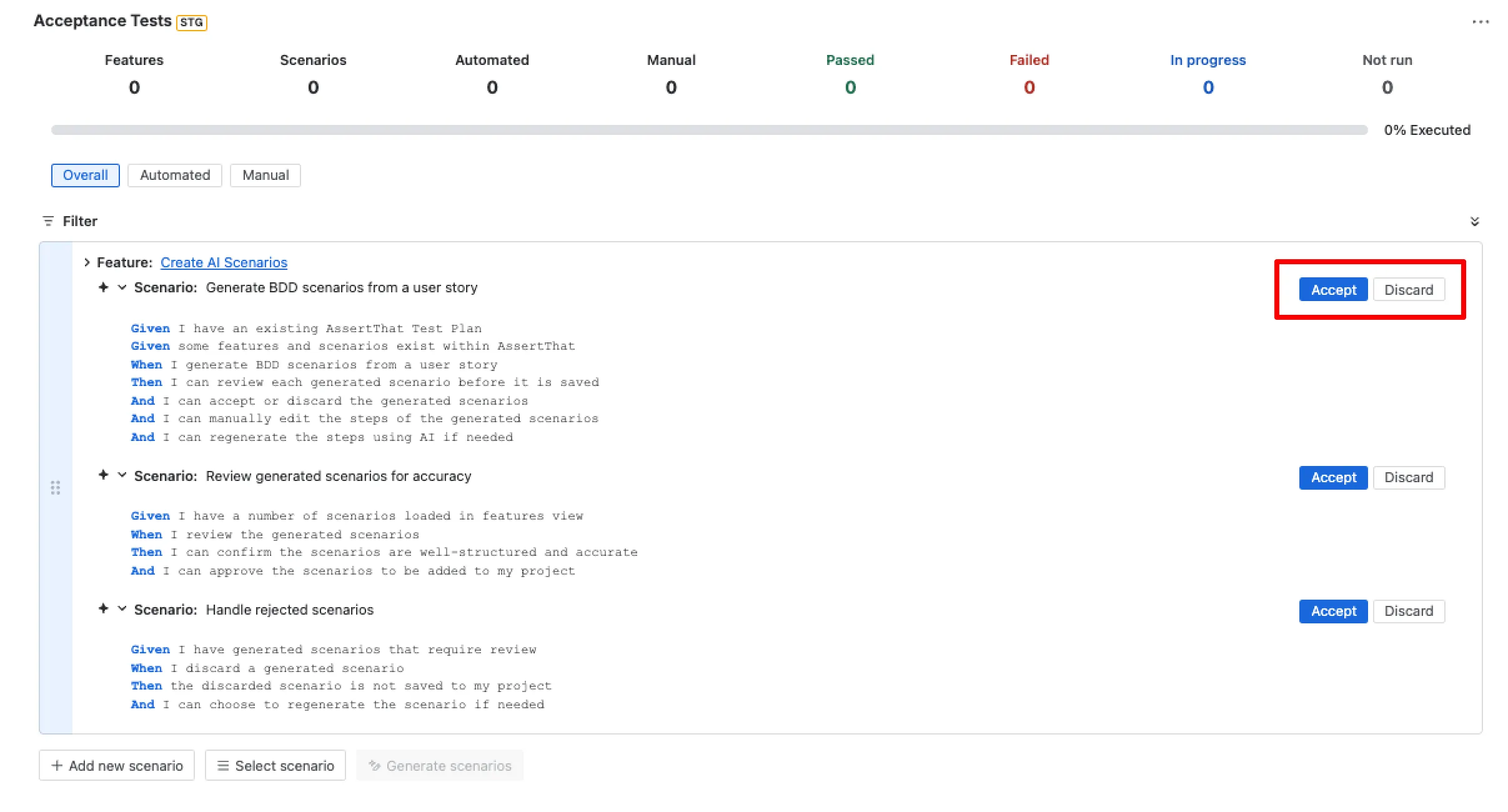
Review each scenario carefully before taking action. You have three options:
Option A: Accept or Discard
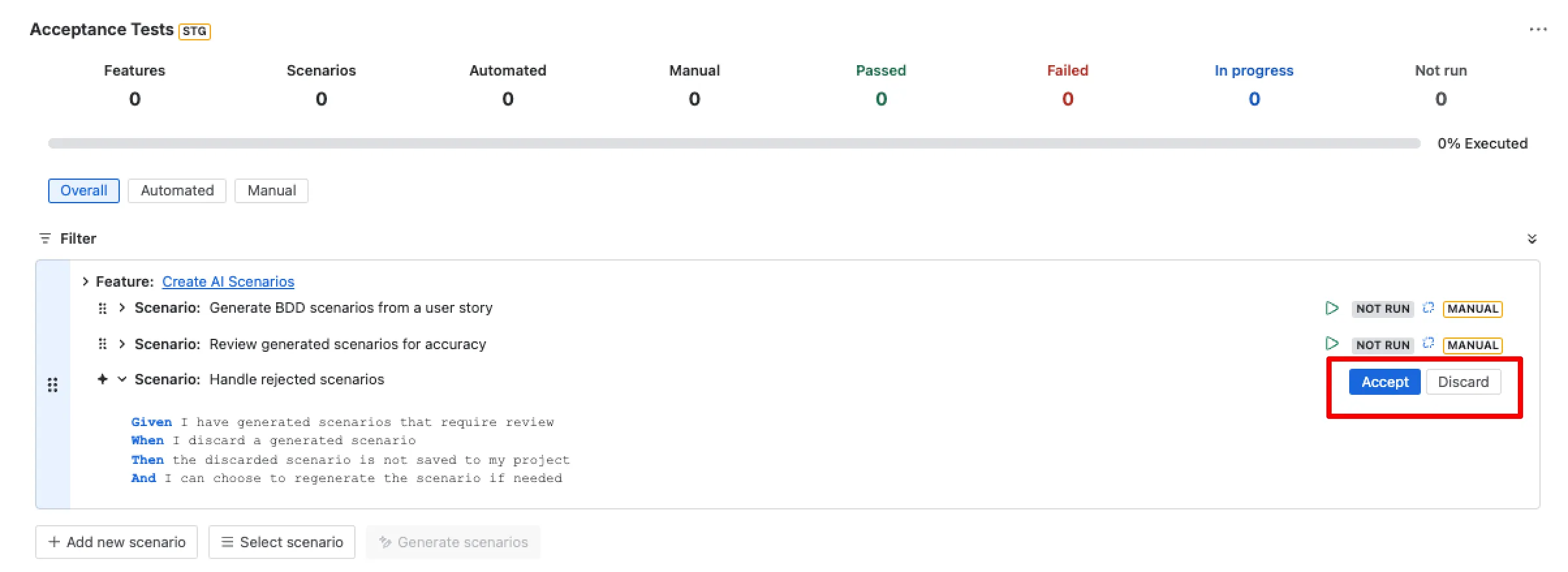
Section titled “Option A: Accept or Discard”If you are happy with a scenario as generated, click Accept to save it to your project. If the scenario is not relevant or not needed, click Discard to remove it without saving.
Option B: Manually Edit the Steps
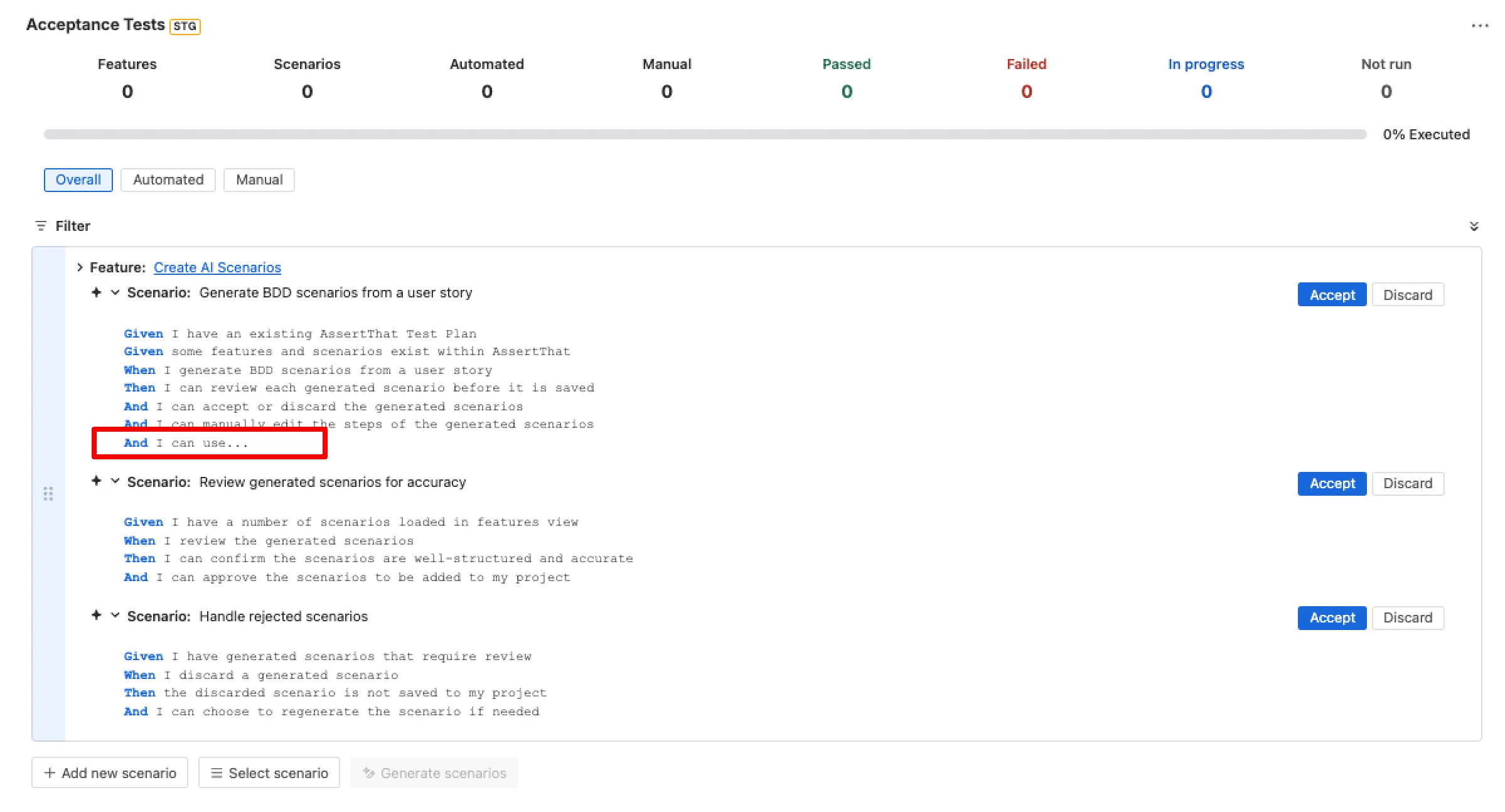
Section titled “Option B: Manually Edit the Steps”If a scenario is mostly right but needs adjustments, you can edit the steps directly inline before accepting. Click into the step text to make your changes, then click Accept to save the edited version.
Option C: Regenerate Steps Using AI
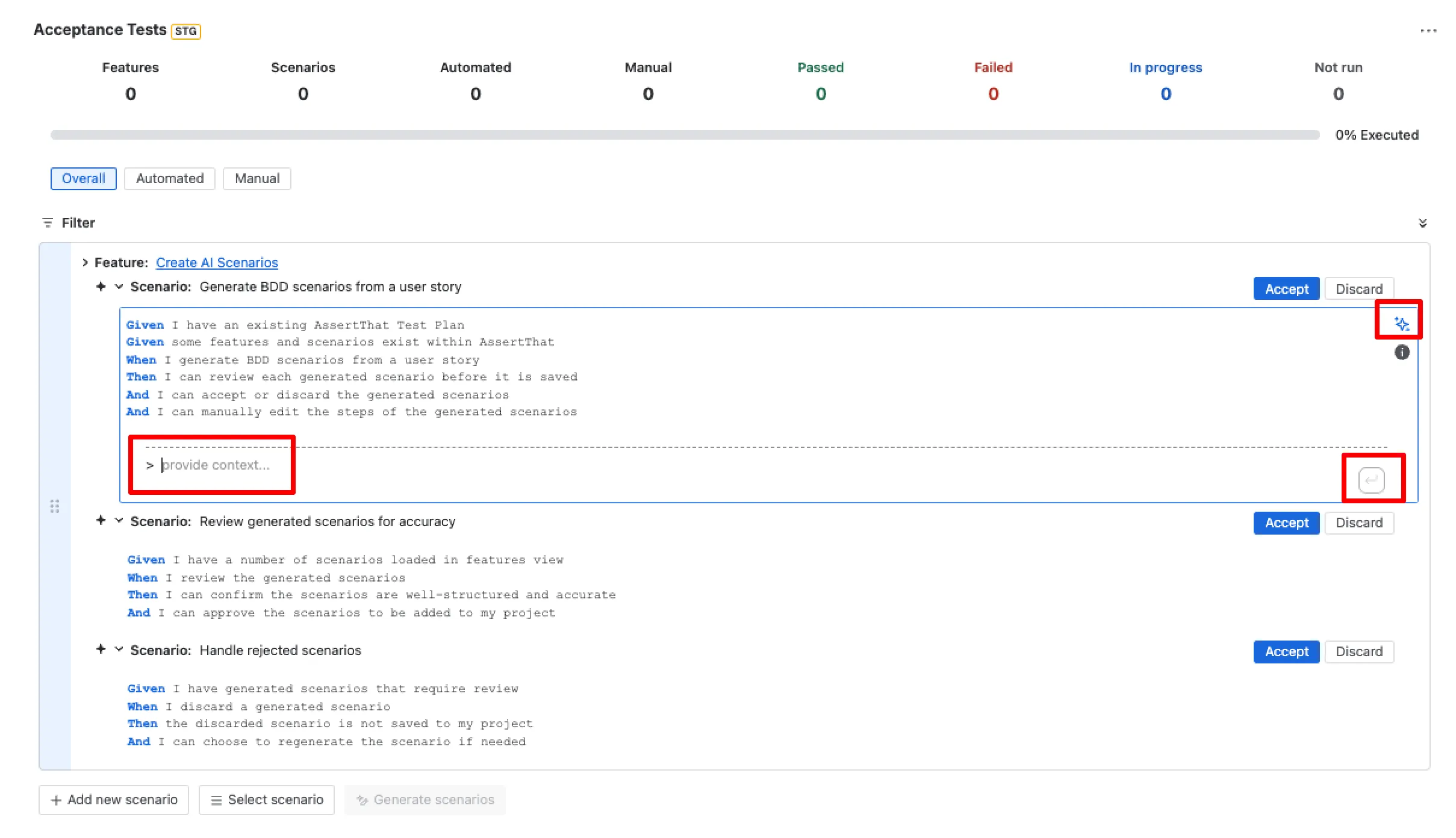
Section titled “Option C: Regenerate Steps Using AI”If you want the AI to rewrite the steps for a specific scenario, use the AI step regeneration option within the scenario. You can provide additional context to guide the rewrite — for example, making the steps more prescriptive or focusing on a specific condition — then click the submit button to regenerate. Review the updated steps and click Accept when satisfied.
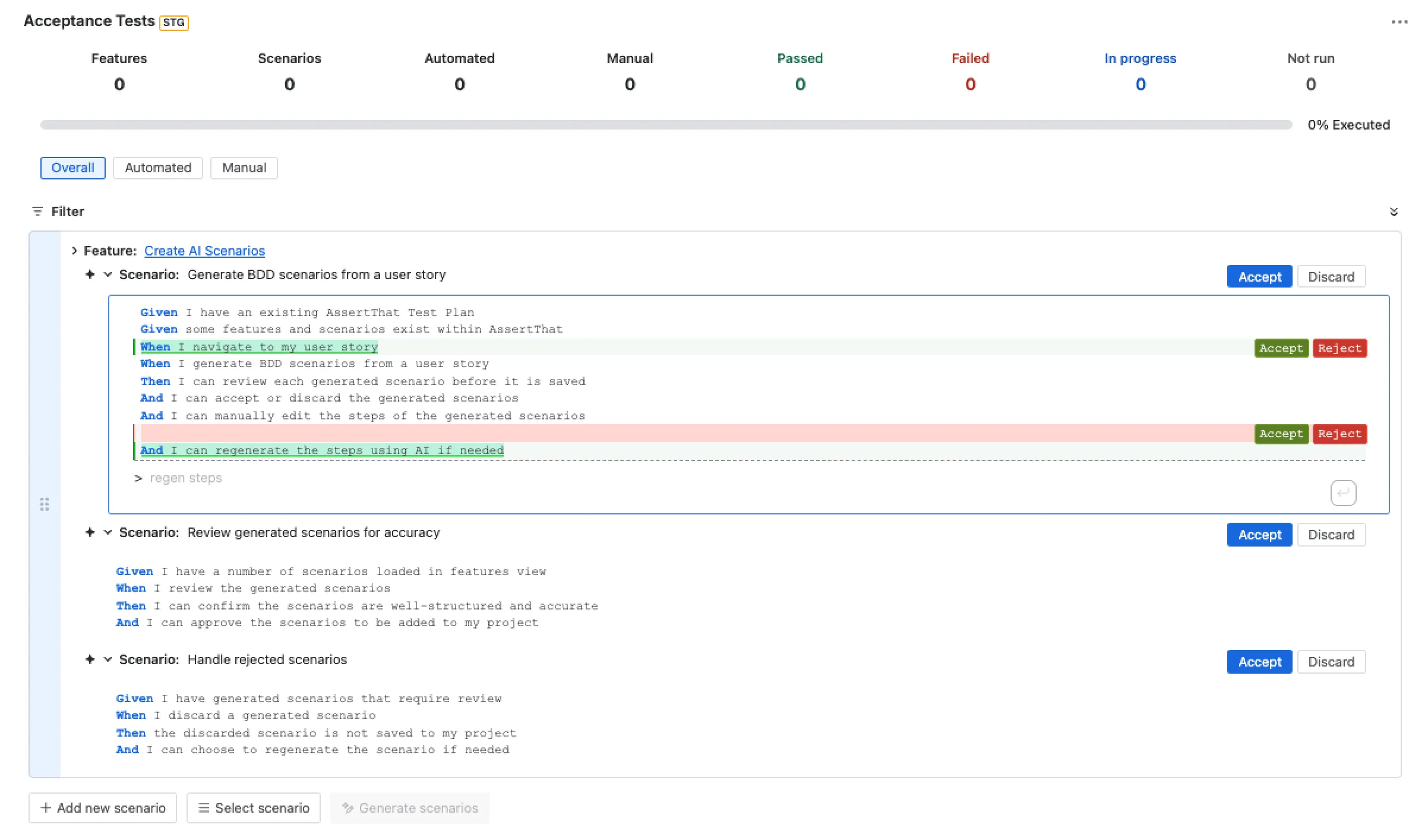
You can also accept or reject individual steps within a scenario using the per-step Accept and Reject buttons.
⚠️ Scenarios that are discarded are not saved to your project. If you discard a scenario and change your mind, you can re-run generation from the Generate scenarios button.