
Create New Features and Scenarios from Issue View
On this page, we detail how to create new scenarios on Issue View. New Scenarios can be added to new or existing features as detailed.
Please review Features page for how to add new Features from this page.
Add new scenario from Issue View
Section titled “Add new scenario from Issue View”Step 1: Users will need to enable AssertThat on Jira tickets if they are viewing the App for the first time - Display AssertThat on Issue View .
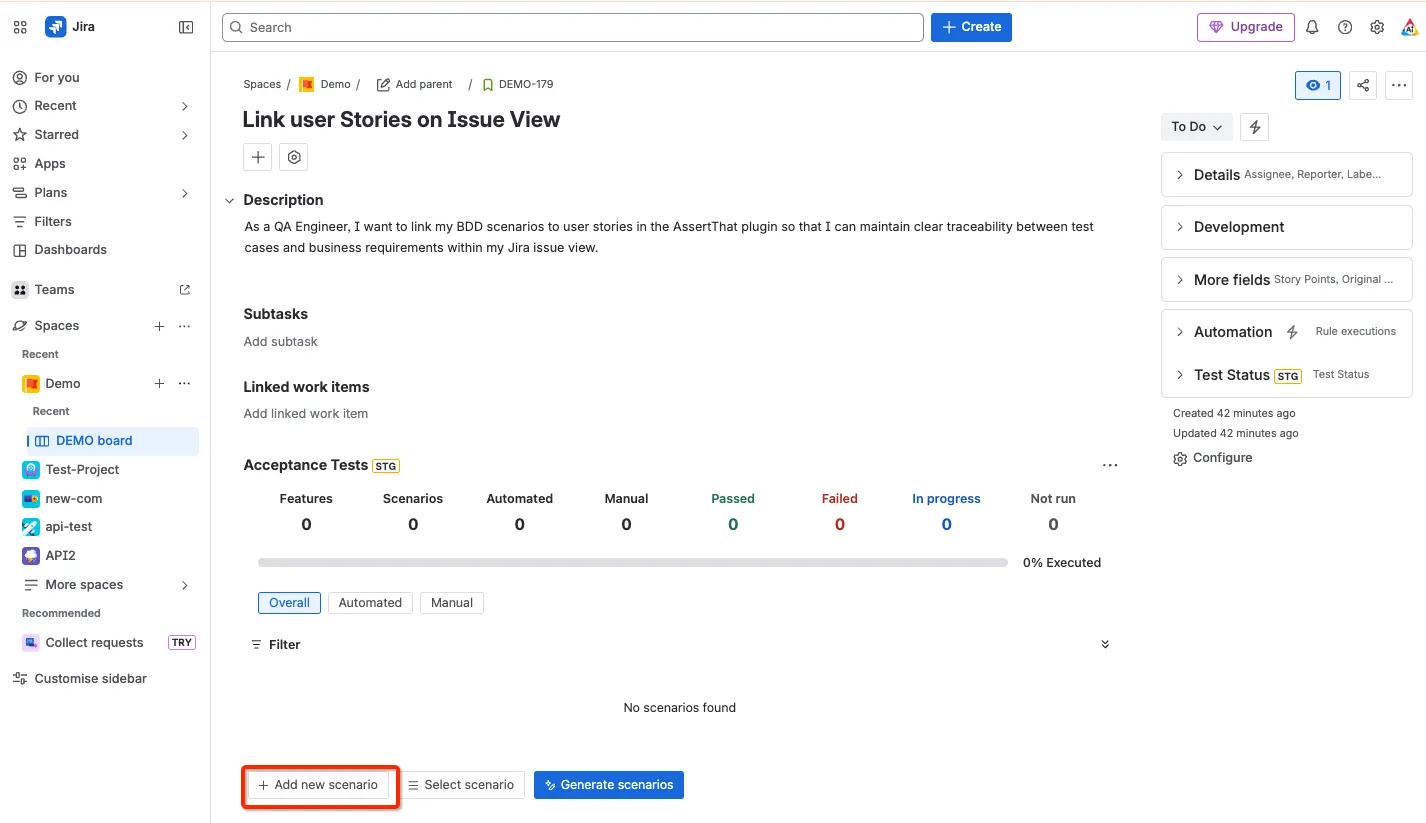
To add a new scenario from a user story, select the Add new scenario button.
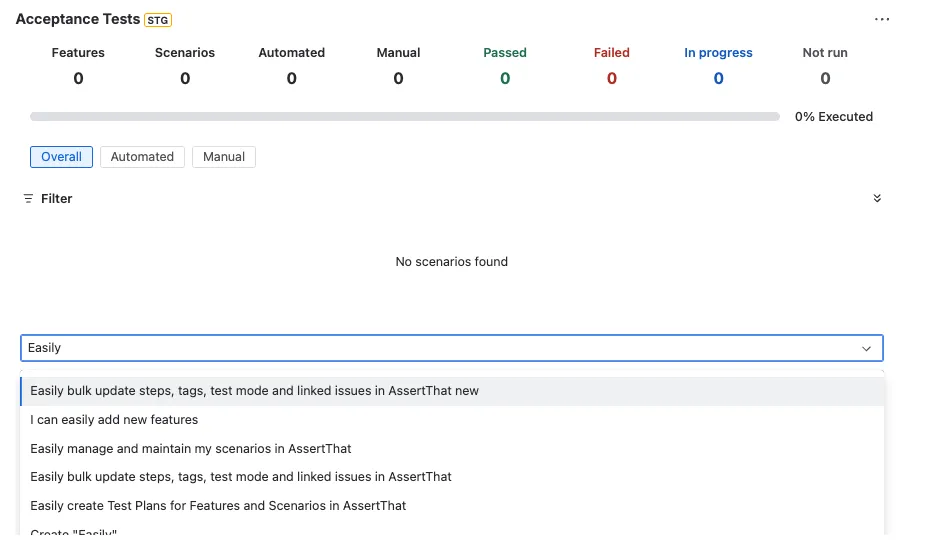
Step 2: Add the scenario to an existing Feature or a new feature
To add to a existing feature start typing the name or text from an existing Feature and select the Feature.
To add the scenario to a New Feature, start typing the name of the new Feature and select
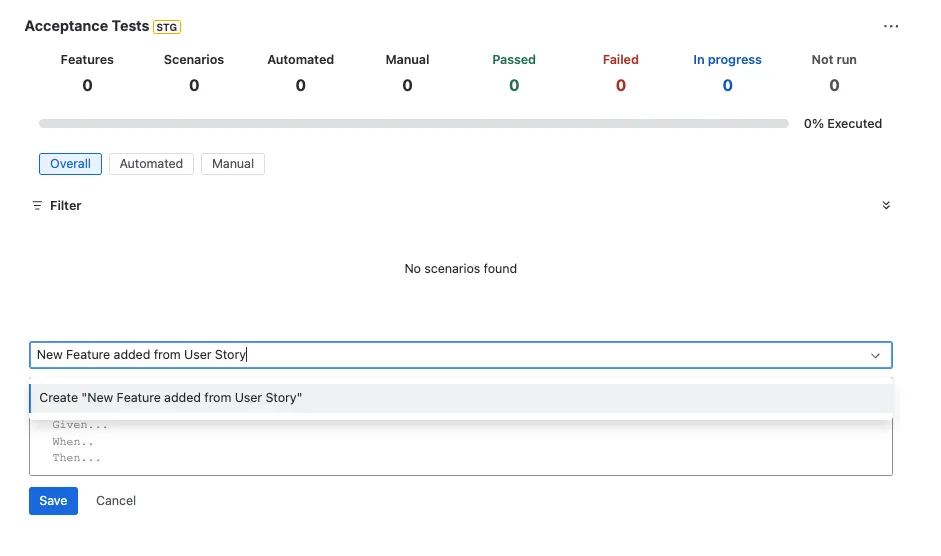
Step 3: Update the details for the Scenario name and steps. Note you can use step Autocomplete to reuse existing steps (Step Autocomplete)
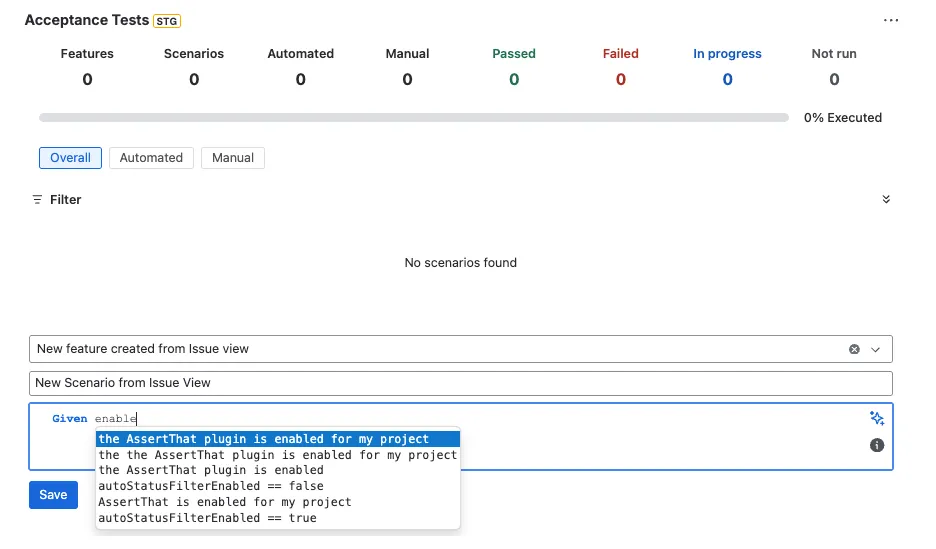
When you have completed adding steps click on Save
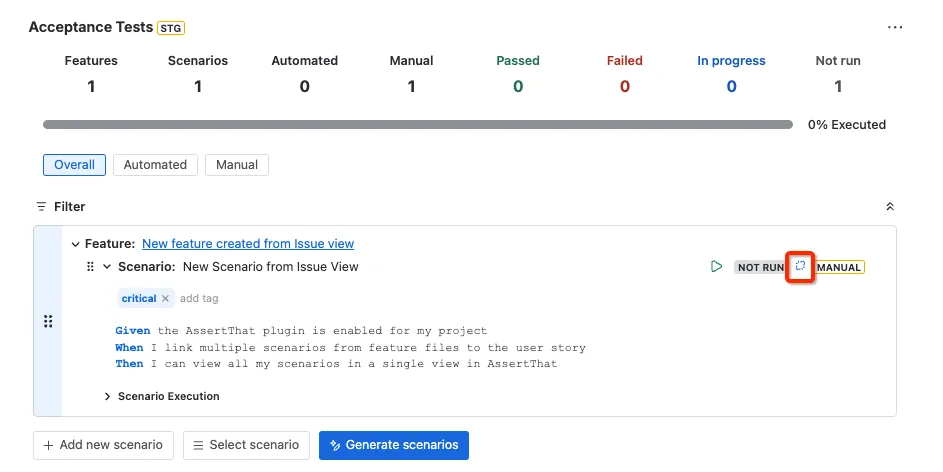
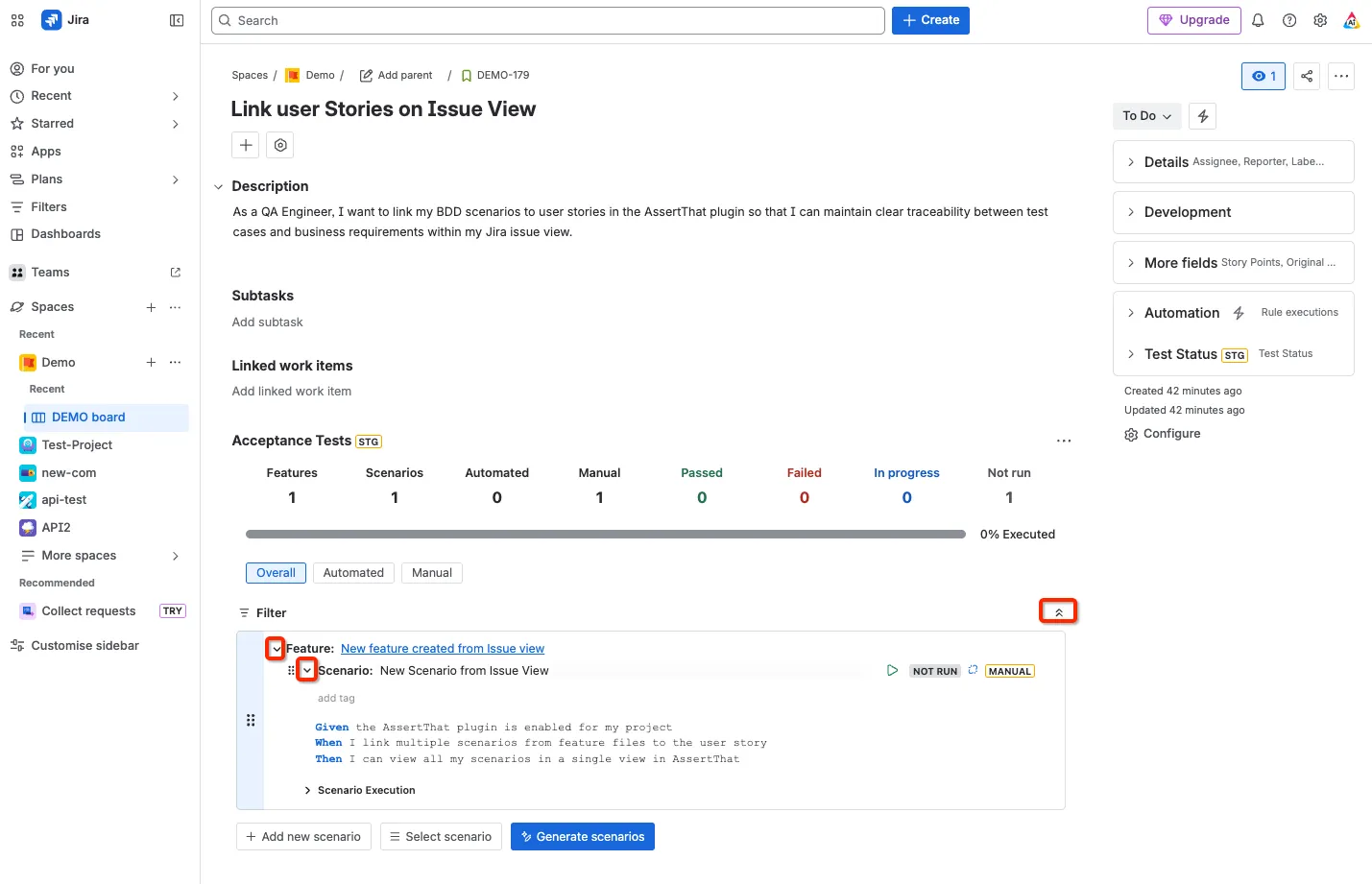
Step 4: Click to expand / collapse to view the view full details of the Scenario
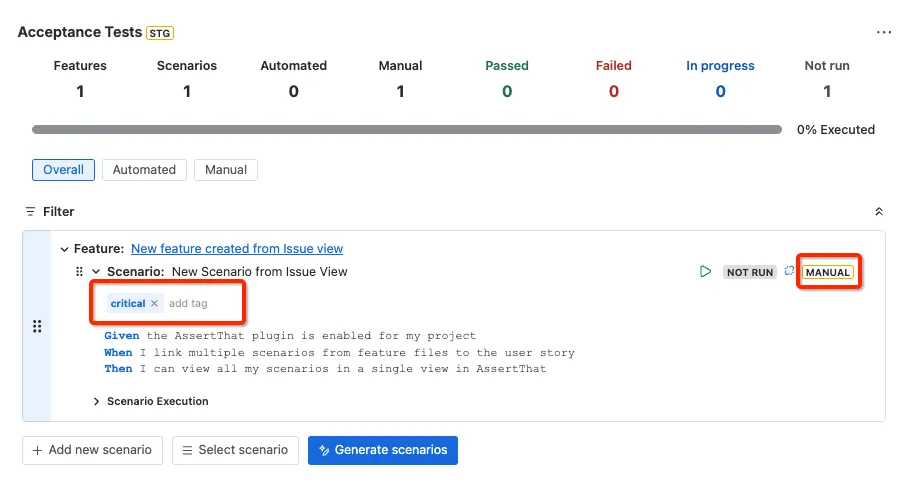
Step 5: Complete the Scenario detail by adding tags and setting the scenario as automated or manual. This setting is used by the plugin to determine if the scenario will be downloaded for Integration with Test Automation Frameworks.
Step 6: If you wish to unlink the scenario click on the respective buttons.