

API Keys Management for AI Providers
Advanced / Standard Users
Section titled “Advanced / Standard Users”AssertThat BDD is available in two subscription tiers: Advanced and Standard. Advanced users get access to AssertThat’s Unlimited Agentic Test Case Generation — a fully managed AI model with no API key required.
Integrate Your Own AI Provider
Section titled “Integrate Your Own AI Provider”Both Advanced and Standard users can connect their own AI provider through the Global Settings page. AssertThat BDD integrates with the following leading AI providers:
-
OpenAI
-
Claude (Anthropic)
-
Azure OpenAI
Each integration requires you to add and validate an API key. Keys are securely stored in Jira’s secret storage and are never exposed in plain text.
Enable AI on AssertThat BDD Global Configuration
Section titled “Enable AI on AssertThat BDD Global Configuration”To enable AI for your installation, navigate to Settings → Marketplace Apps → AssertThat BDD.
When AI is enabled, Advanced users will immediately have access to unlimited use of the AssertThat Agentic AI model — no further configuration required. Standard users will need to configure their own AI provider API key to get started.
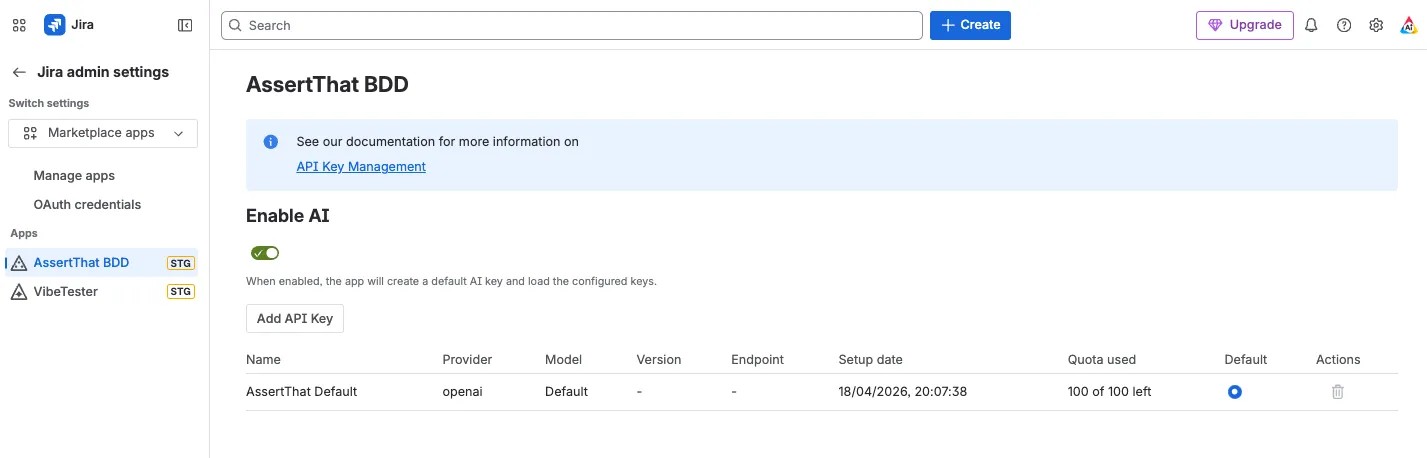
AI Provider Integration
Section titled “AI Provider Integration”Both Advanced and Standard users can set up their own API keys for the following providers:
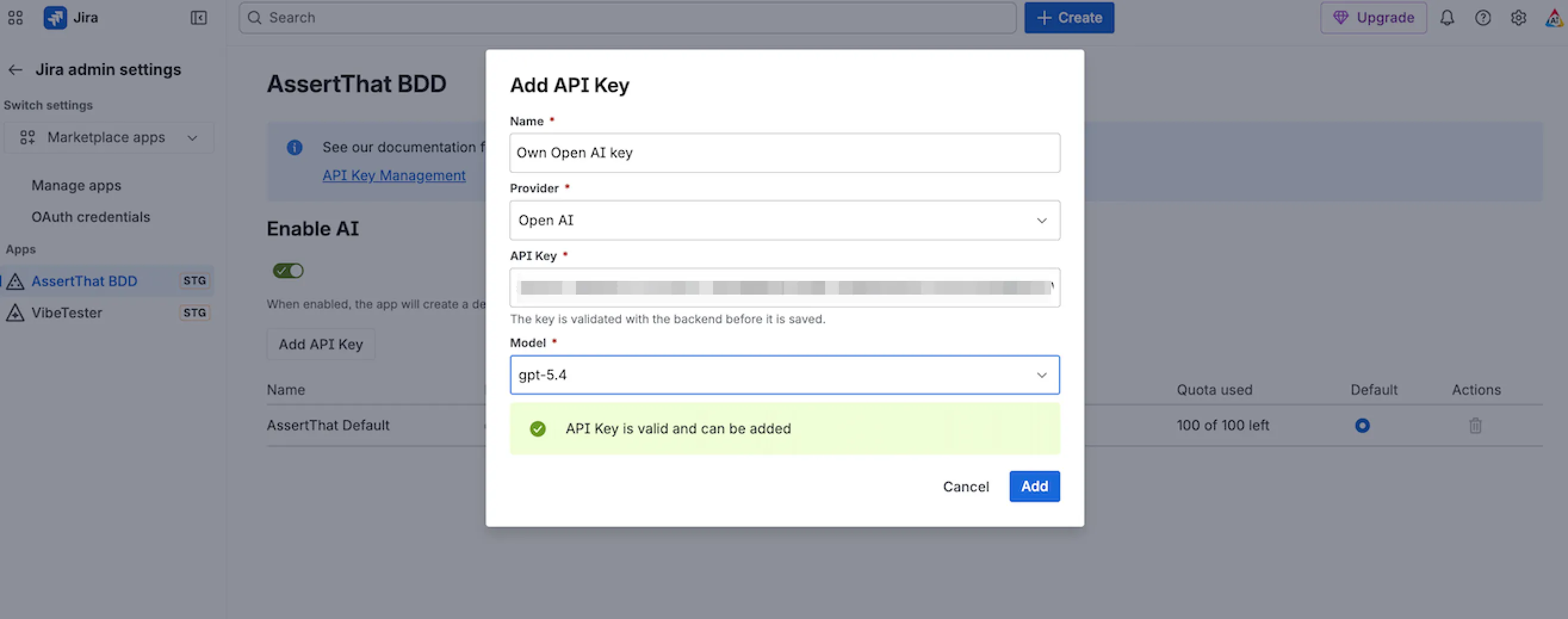
OpenAI
Section titled “OpenAI”To connect to OpenAI:
-
Click Add API Key.
-
Complete the following fields:
-
Name: a friendly name for this connection
-
Provider: select OpenAI from the dropdown
-
API Key: paste your OpenAI key
-
-
Click Validate to confirm the key is working.
-
Once validation succeeds, select your preferred Model and click Add to save.
Claude (Anthropic)
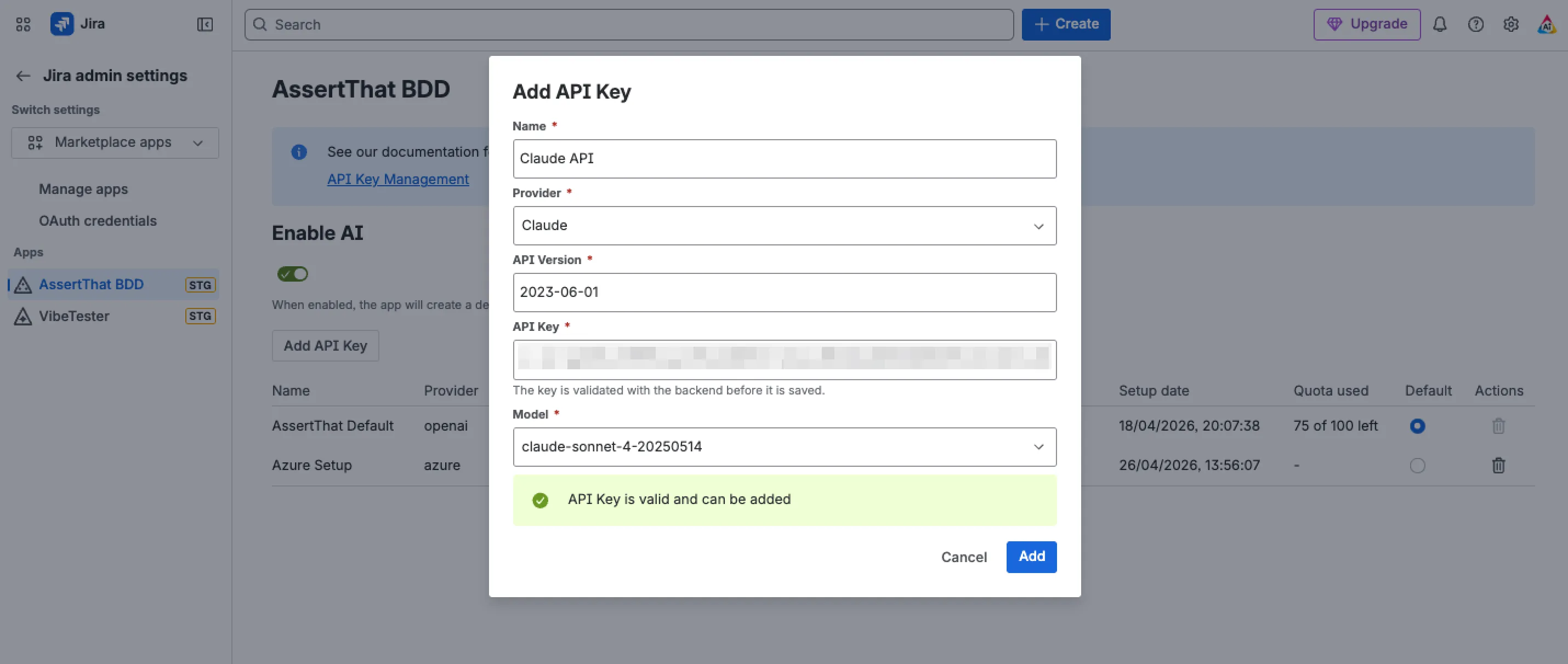
Section titled “Claude (Anthropic)”To connect to Claude:
-
Click Add API Key.
-
Complete the following fields:
-
Name: a friendly name for this connection
-
Provider: select Claude from the dropdown
-
API Version: enter the API version (https://docs.claude.com/en/api/versioning )
-
API Key: paste your Claude key
-
-
Click Validate to confirm the key is working
-
Once validation succeeds, select your preferred Model and click Add to save.
Azure OpenAI
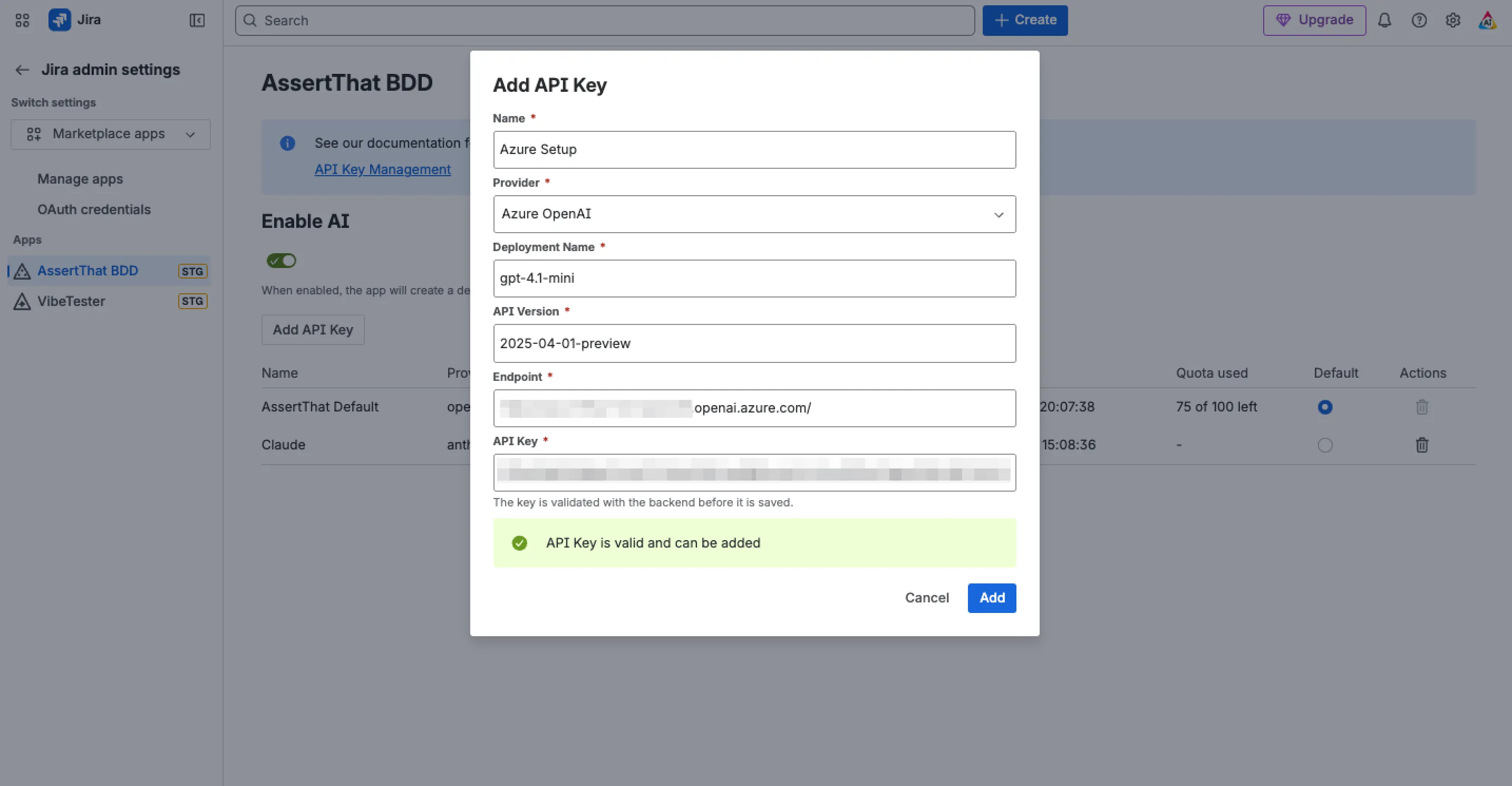
Section titled “Azure OpenAI”To connect to Azure OpenAI:
-
Click Add API Key.
-
Complete the following fields:
-
Name: a friendly name for this connection
-
Provider: select Azure OpenAI from the dropdown
-
Deployment Name: your Azure deployment ID
-
API Version: enter the API version
-
Endpoint: your Azure OpenAI endpoint URL
-
API Key: paste your Azure OpenAI key
-
-
Click Validate to confirm the key is working.
-
Once validation succeeds, click Add to save.