

Execution
An execution (TE-n) is one run of a set of test cases, for example Release 2.4 regression on staging. The Execution tab lists executions in folders. Expand an execution in the explorer to see its test cases.
Create an execution
Section titled “Create an execution”- Click Create execution.
- Enter an Execution name and choose a Type:
- From a test plan loads the plan’s test cases;
- Ad hoc lets you search and select test cases directly, with a priority filter.
- Review the name, type and test cases, and create it.
You can also create executions:
- from Test design, with the Add to execution bulk action;
- from the AI assistant, for example Create an execution from the Smoke plan and assign it to me;
- from Insights › Regression risk, with the riskiest test cases;
- automatically, when CI results are imported. Those executions are marked AUTOMATION.
Clone (re-run) in an execution’s row menu creates a new execution with the same test cases and reset results.
The execution overview
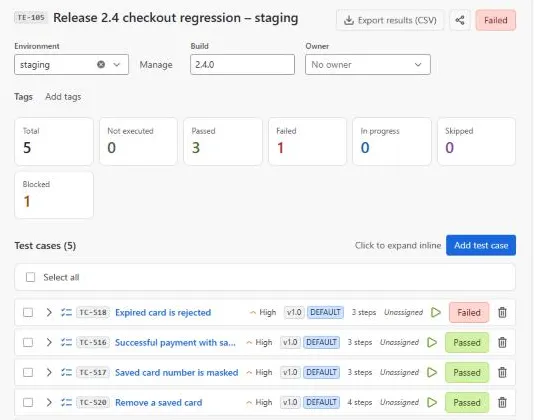
Section titled “The execution overview”Open an execution to see:
- the TE reference, Copy link and Tags;
- the meta bar with Environment, Build and Owner. Manage next to Environment lets you add, rename and delete the project’s environments;
- progress tiles: Total, Not executed, Passed, Failed, In progress, Skipped and Blocked;
- the Test cases list. Expand a case to see its steps and Execution history, open it in Test design, Run test case, or Remove from this execution;
- Linked issues for the whole execution, such as the release or sprint ticket;
- custom execution fields, if your project has any.
Assign testers
Section titled “Assign testers”Select test cases in the list, choose an assignee and click Assign (or Unassign). Testers can filter the explorer with Assigned to me, or ask the AI assistant What’s assigned to me?
Add test cases
Section titled “Add test cases”Add test case adds more cases to an existing execution.
Export results
Section titled “Export results”Export results (CSV) downloads every case with its status, for sharing outside Jira.
Triage failures
Section titled “Triage failures”When an execution has failed or blocked cases, the Triage failures panel groups them by likely cause (a product defect, a problem with the test, or the environment) with a suggested next step. Grouping is rule-based and costs no AI allowance. Click Explain with AI for a written explanation of a group, or quarantine cases that turn out to be flaky. See Flaky tests and quarantine.
Find executions
Section titled “Find executions”The explorer filters by Assigned to me, environment, folder name, execution name, tags, priority and custom execution fields. Each execution shows a colour for its overall status.
In this section
Section titled “In this section”- Running tests: record step results, use the timer, raise defects and attach evidence
- Exploratory testing