

Insights
The Insights tab answers the questions that come up before a release: is it ready, what should we run, what is flaky and what is duplicated. It has five views: Overview, Release readiness, Regression risk, Duplicates and Flaky & quarantine.
Insights work from your Jira fix versions. Choose a release in the context bar at the top; the bar also shows when the data was last updated and has a Refresh button. If the project has no fix versions yet, create one in Jira and set it on the stories it will ship.
Most of Insights is deterministic and costs no AI allowance. AI is only used where a view says so, such as generating tests for gaps or confirming duplicates.
Overview
Section titled “Overview”The overview shows a Verdict for the release and the numbers behind it:
- Coverage: how many of the release’s requirements have test cases;
- Pass rate;
- Open defects;
- Flaky tests, and how many are quarantined;
- Duplicate pairs.
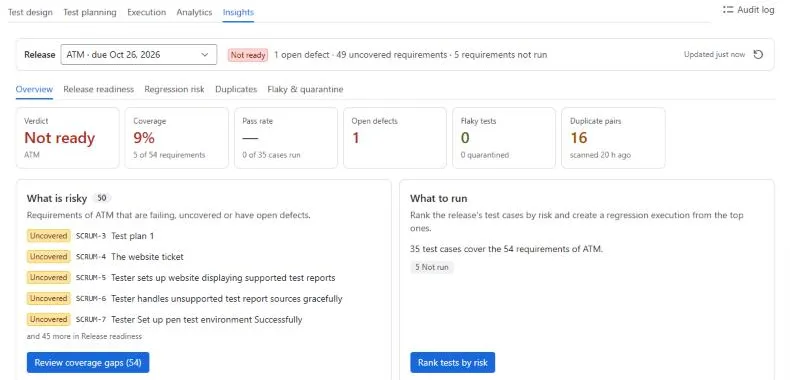
Four cards (What is risky, What to run, What is flaky, What is duplicated) link to the view that helps.
How the verdict is decided
Section titled “How the verdict is decided”| Verdict | When |
|---|---|
| Not ready | Any requirement has a failing test, or a covering test case has an open defect |
| At risk | Some requirements are uncovered, not run yet or still in progress |
| Ready | Every requirement is covered and passing |
| No data | The release has no requirements or no results yet |
The overview also says why in one line, for example which requirement is failing.
Release readiness
Section titled “Release readiness”Requirements of the selected version lists each requirement with its coverage state, number of tests and open defects. Filter by All, Gaps or a single state: Failing, Uncovered, Not run, In progress or Covered & passing.
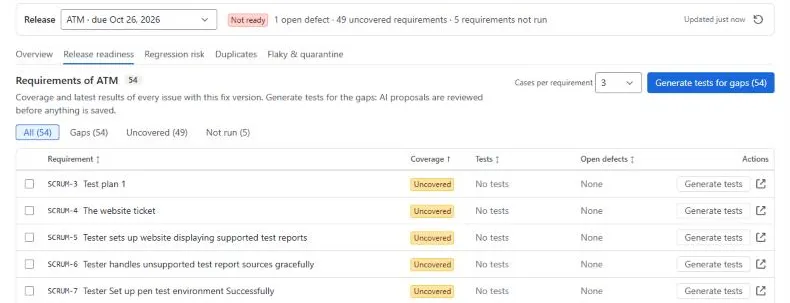
Generate tests for gaps
Section titled “Generate tests for gaps”- Filter to Gaps, or select the requirements you want.
- Set Cases per requirement.
- Click Generate tests for gaps (or Generate tests for N selected). AI drafts test cases from each requirement, up to 10 requirements per batch.
- Review the proposals. Only the ones you tick are saved, each linked to its requirement. Click Accept or Discard.
Regression risk
Section titled “Regression risk”Regression risk ranks test cases by how likely they are to catch a regression, using recent changes to their requirements, defects, flakiness, recent failures and priority. It is deterministic and has no AI cost.
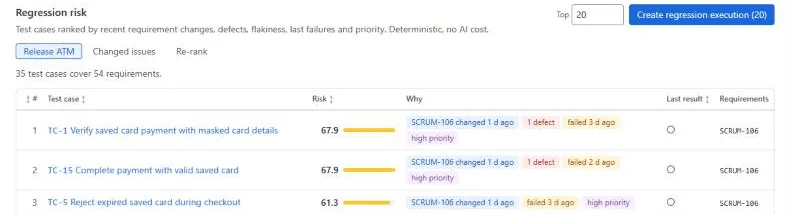
- Choose the scope: a Fix version, or Changed issues (enter issue keys).
- Read the ranked list: risk score, Why it ranks there, last result and requirements.
- Choose how many to take (Top N) and click Create regression execution. Quarantined cases are left out.
Duplicates
Section titled “Duplicates”- Choose the scope: the Whole project or one folder.
- Click Find duplicates. Pairs are listed with their similarity and marked Likely duplicate or Similar. The scan itself has no AI cost.
- Optionally click Confirm with AI to have AI check the pairs (this uses AI allowance).
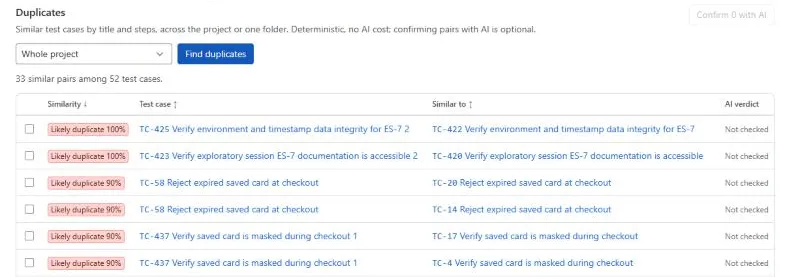
Test cases that look similar to others also show a hint in the test case editor.
Flaky tests and quarantine
Section titled “Flaky tests and quarantine”The Flaky table lists test cases whose results keep flipping, with the number of flips and runs, recent results and the last run. No AI is used.
Select flaky cases and click Quarantine selected with a reason. The Quarantine list shows each quarantined case with its reason, since when, and the release. Quarantined cases still run, but they are left out of the release pass rate and of regression executions. Remove a case from quarantine when it is stable again.
You can also quarantine from an execution’s Triage failures panel.