

AI assistant
The AI assistant sits at the top of the project page. Type what you want in plain language and it does the work across every tab: test design, planning, execution, analytics and insights. If it needs more details, it asks, then acts once it has what it needs.
All AI features run on Atlassian’s hosted AI models through Forge. There are no API keys to set up, and your data and prompts stay within Atlassian.
Ask for something
Section titled “Ask for something”- Click the prompt bar and type a request. Press Enter to send, or Shift+Enter for a new line.
- Watch the chat panel. The assistant works step by step and shows what it is doing. Stop AI generation cancels it.
- When it finishes, a Created or changed items card lists every item it created or updated, each with an Open link.
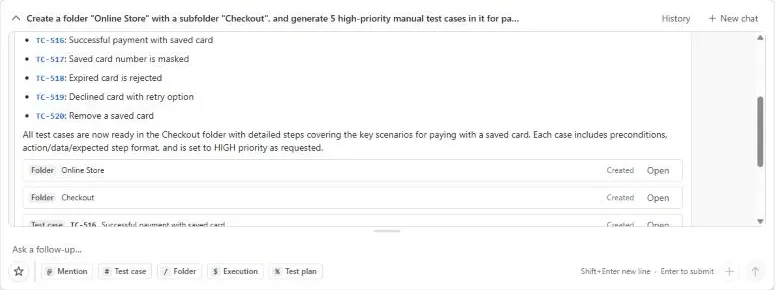
If you don’t know where to start, the empty chat suggests prompts such as:
- Generate 8 smoke test cases for login flow and place them in /Authentication/Login/Smoke.
- Use @PROJ-101 as the source and generate high-priority test cases for the acceptance criteria.
- Generate manual test cases for payment methods, retries, and failures in /Checkout/Payments.
- Create a folder named “Smoke Suite” under /Release 2.4.
Refer to items precisely
Section titled “Refer to items precisely”Type a symbol to pick an item from a list. The assistant then knows exactly which one you mean.
| Type | To reference |
|---|---|
| @ | A Jira issue |
| # | A test case |
| / | A folder |
| $ | An execution, or a test case within it |
| % | A test plan |
When the assistant asks a question
Section titled “When the assistant asks a question”If something required is missing, such as which folder or how many cases, the assistant asks with quick-reply options or a short form. Pick an option or type your answer, then Send answer.
Chats, favourites and undo
Section titled “Chats, favourites and undo”- New chat starts fresh; History lists recent chats, which you can rename or delete. Chats unused for 90 days are deleted.
- Favorites stores prompts you use often. Picking a favourite or a suggestion replaces the prompt text; Undo brings back what you had typed.
- Retry runs a failed request again.
- To reverse something the assistant changed, ask it (for example Move those test cases back to /Login), or restore archived items from Archived. Every change is listed in the audit log.
What the assistant can do
Section titled “What the assistant can do”The assistant can do almost anything you can do in the app, with your permissions:
- Test design: create, find, rename, move, clone and archive folders and test cases; write manual steps, shared step calls or BDD scenarios; change priority, status, tags and type; manage versions; fill datasets; bulk-update up to 500 cases.
- Jira: read issues and subtasks as a source for tests, link test cases to issues and create Jira issues.
- Planning: create and update test plans and add cases to them.
- Execution: create executions from cases, folders or plans; assign testers; set environment and build; record step and case results with comments; start re-runs; raise defects from failed steps.
- Analytics: create analytics files, apply filters, add charts and answer questions about your results.
- Insights: release readiness, coverage gaps and generating tests for them, regression risk, duplicates, failure triage and quarantine.
- Governance: show history, list and restore archived items, request reviews and list pending ones, read and set custom field values.
- Exploratory testing: create sessions, add notes and summarise them.
- The page itself: apply filters in the explorer, for example Show draft test cases with high priority.
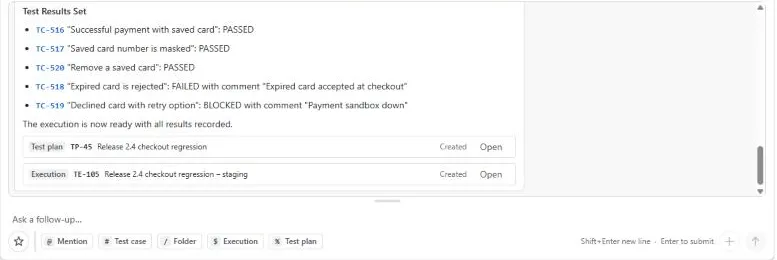
Only people can approve test cases in the review workflow; the assistant can’t.
Every change the assistant makes is recorded in the audit log with the source AI assistant and your name.
Other AI features
Section titled “Other AI features”| Feature | Where |
|---|---|
| Generate test cases from a Jira issue | Issue panel › Generate with AI |
| Generate tests for uncovered requirements | Insights › Release readiness |
| Suggest test data rows | Dataset › Suggest rows with AI |
| Explain grouped failures | Execution › Triage failures |
| Confirm duplicate tests | Insights › Duplicates |
| Manage tests from Rovo or an MCP client | Rovo, MCP and REST API |
Monthly AI allowance
Section titled “Monthly AI allowance”Every site has a monthly AI allowance, sized to your subscription and number of users. It resets on the 1st of every month.
- To keep AI available for the whole team, one person can use at most a quarter of the monthly allowance.
- When the site is nearing its allowance, a message under the prompt bar shows roughly how many AI actions are left.
- When the allowance (or your share of it) is used up, AI features pause until the reset date shown in the message. Everything else in the app keeps working as normal.
- An AI job that is already running is allowed to finish.
Features that don’t use AI, such as the duplicate scan, regression risk ranking, flaky detection and rule-based failure triage, never count against the allowance.
Jira administrators can see the site’s usage, and who uses the most, under Global settings › AI usage this month.
Tips for good results
Section titled “Tips for good results”- Point the assistant at a source: reference the story with @ so it reads the description and acceptance criteria.
- Say where results should go: a folder with /, a plan with %.
- Ask for a number and a focus, for example 6 negative test cases for input validation.
- Review what it created using the Open links, and refine with a follow-up message in the same chat.