

Project settings
Open the project, then Space settings › Apps › AssertThat ATM. Only Jira administrators and project administrators can change these settings. The page has four tabs: General & permissions, Review workflow, Custom fields and Custom statuses.
Enable the project
Section titled “Enable the project”On General & permissions, switch Enable AssertThat Test Management on or off. When it is off, the project page and issue panel are hidden for this project; existing data is kept.
Permissions
Section titled “Permissions”Choose which Jira project permission people need for each kind of test management work. The same rules apply everywhere: the app, the issue panel, the AI assistant, Rovo, MCP and the REST API.
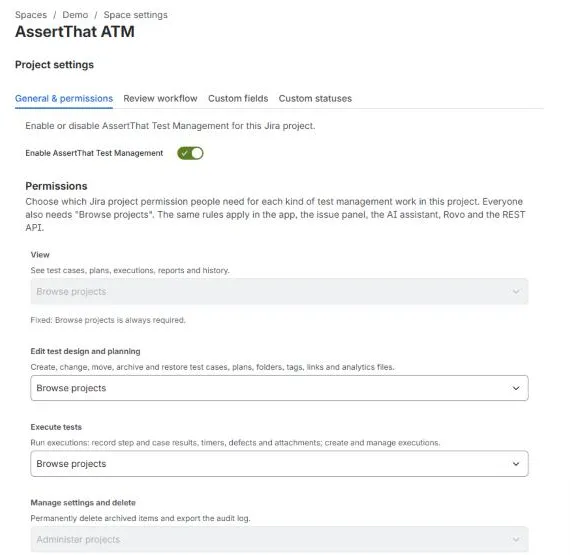
| Work | Covers | Required Jira permission (default first) |
|---|---|---|
| View | See test cases, plans, executions, reports and history | Browse projects (fixed) |
| Edit test design and planning | Create, change, move, archive and restore test cases, plans, folders, tags, links and analytics files | Browse projects, Edit issues or Administer projects |
| Execute tests | Record step and case results, timers, defects and attachments; create and manage executions | Browse projects, Edit issues or Transition issues |
| Manage settings and delete | Permanently delete archived items and export the audit log | Administer projects (fixed) |
For example, to stop people with read-only Jira access from changing tests, set Edit test design and planning to Edit issues.
People without edit rights see a Read-only access banner that tells them which permission they need.
Review workflow
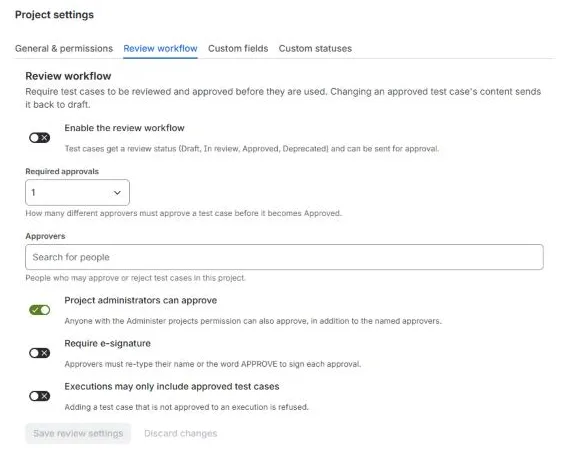
Section titled “Review workflow”Turn on approvals for test cases. See Versions and reviews for how reviews work day to day.
| Setting | What it does |
|---|---|
| Enable the review workflow | Shows review statuses and controls on every test case |
| Required approvals | How many approvals a case needs |
| Approvers | The people who can approve |
| Project administrators can approve | Also lets project admins approve |
| Require e-signature | Approvers type their name or APPROVE to sign |
| Executions may only include approved test cases | Blocks unapproved cases from executions |
Click Save review settings.
Custom fields
Section titled “Custom fields”Add your own fields to Test cases and Executions, for example Component, Risk or Release train.
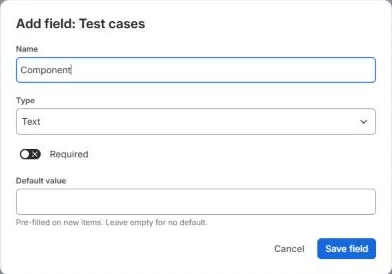
- Choose Test cases or Executions and add a field.
- Pick a type: Text, Paragraph, Number, Select list, Multi-select list, Checkbox, Date or User.
- Set whether it is Required, an optional Default value, and for lists the Options (one per line).
A field’s type can’t be changed after it is created. Archive fields you no longer need; Show archived lets you restore them. Custom fields appear in the editors, in explorer and analytics filters, and in the AI assistant and Rovo.
Custom statuses
Section titled “Custom statuses”Add statuses beyond the built-in ones, for Execution statuses (such as Passed with issues) and Test case statuses (such as Needs update).
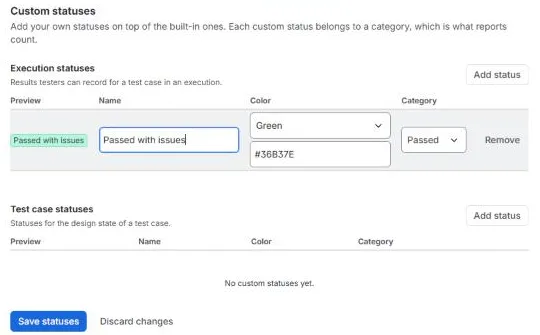
For each status choose a name, a colour, and a Category. The category is what reports count it as:
- execution statuses: Passed, Failed, Blocked, Skipped, In progress or Not executed;
- test case statuses: Draft or Ready.
So a Passed with issues status in the Passed category counts towards the pass rate.