

Exploratory testing
Exploratory sessions let you test without a script while still leaving a record. You’ll find them in the Exploratory section at the bottom of the Execution explorer.
Start a session
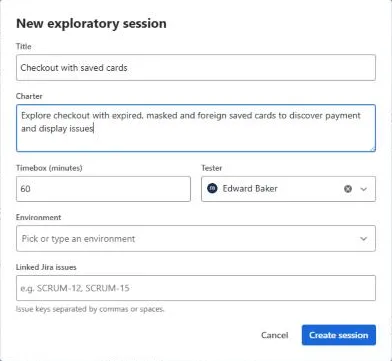
Section titled “Start a session”- Click New session.
- Fill in:
- Title, for example Checkout with saved cards;
- Charter, in the form Explore <target> with <resources> to discover <information>;
- Timebox (minutes);
- Tester and Environment;
- Linked Jira issues, if the session explores specific stories.
- Click Create session, then Start.
The timer shows elapsed time against the timebox and warns you when you go over. Pause, Resume and Complete the session as you go. Sessions are Not started, In progress, Paused or Completed.
Take notes
Section titled “Take notes”Add session notes while you test. Each note has a type: Note, Bug, Question or Idea. Notes are stamped with the session time. Attach an image or paste a screenshot straight into a note, and press Ctrl+Enter (or Cmd+Enter) to add it.
Act on findings
Section titled “Act on findings”- Create defect on a note raises a Jira issue from it.
- Select one or more notes and click Convert to test case to turn them into a manual test case. Choose its title and the Test design folder it goes in.
Session report
Section titled “Session report”Open the Report to see the charter, status, tester, environment, duration, counts, bugs, questions, ideas, defects raised, test cases created and the full timeline. Copy as text or Download Markdown to share it.
Deleting a session keeps the defects and test cases created from it.
Exploratory stats
Section titled “Exploratory stats”The section header shows how many sessions you’ve run and completed, total and average time, and bugs found. The Analytics tab also has an Exploratory testing card with recent activity and the most active testers.