Enhance Automated Testing with Custom Screenshots with Selenium Shutterbug
Improve automated testing using Custom Screenshots with Selenium Shutterbug for effective visual validation and quality assurance.

Overview of Selenium Shutterbug – utility library to create customized screenshots using Selenium WebDriver and Java AWT
Dive into the capabilities creating Custom Screenshots with Selenium Shutterbug, a robust utility library crafted for creating custom screenshots in test automation scenarios. Integrating seamlessly with Selenium WebDriver and Java AWT, this tool is pivotal in transforming the reporting aspect of test automation.
In the realm of test automation, the clarity and detail in reporting are paramount. Imagine orchestrating thousands of tests across a variety of devices, operating systems, and browsers. Without precise and descriptive reporting, the effort expended can result in mere consumption of resources without yielding actionable insights.
The power of Selenium Shutterbug lies in its ability to generate self-explanatory custom screenshots. These visual reports simplify the task of pinpointing test failures, enabling prompt and effective actions – be it flagging a defect or rectifying the test script.
Developed with a focus on enhancing the efficiency of testers, Selenium Shutterbug streamlines the process of capturing insightful screenshots. Whether it’s for attaching direct evidence in bug reports or providing a snapshot of the system’s state at a crucial juncture, this tool is indispensable in modern test automation practices.
Exploring Basic Usage Examples of Custom Screenshots with Selenium Shutterbug
Take screenshot and save to default location (./screenshots/):
Shutterbug.shootPage(driver).save();Take screenshot and specify location to save to:
Shutterbug.shootPage(driver).save("C:\\testing\\screenshots\\");Take screenshot and scroll in both directions:
This is particularly useful while testing in Chrome, since it if following W3C definition of screenshot and takes screenshot of the top-level browsing context’s viewport only.
Shutterbug.shootPage(driver, ScrollStrategy.WHOLE_PAGE).save();Take screenshot of specified WebElement only:
Shutterbug.shootElement(driver, element).save();Compare screenshot taken with the expected one with specified deviation rate:
Shutterbug.shootPage(driver).equals(otherImage,0.1);Take screenshot and save thumbnail as well (with specified resize ratio):
Shutterbug.shootPage(driver).withThumbnail(0.4).save();And many more ..
Illustrating Selenium Shutterbug in Action: A Step-by-Step Example
System.setProperty("webdriver.chrome.driver", "your path to  chromedriver.exe");        WebDriver driver = new ChromeDriver();        driver.get("https://www.google.com/imghp");        WebElement googleLogo = driver.findElement(By.id("hplogo"));        WebElement searchBtn = driver.findElement(By.id("sblsbb"));        WebElement searchBox = driver.findElement(By.className("gsfi"));
        searchBox.sendKeys("Testing");
        Shutterbug.shootPage(driver)                .blur(searchBox)                .highlight(searchBtn)                .monochrome(googleLogo)                .highlightWithText(googleLogo, Color.blue, 3, "Monochromed logo",Color.blue, new Font("SansSerif", Font.BOLD, 20))                .highlightWithText(searchBox, "Blurred secret words")                .withTitle("Google home page - " + new Date())                .withName("home_page")                .withThumbnail(0.7)                .save("C:\\testing\\screenshots\\");        driver.quit();
Outcome of Using Selenium Shutterbug: Processed Image and Saving Location
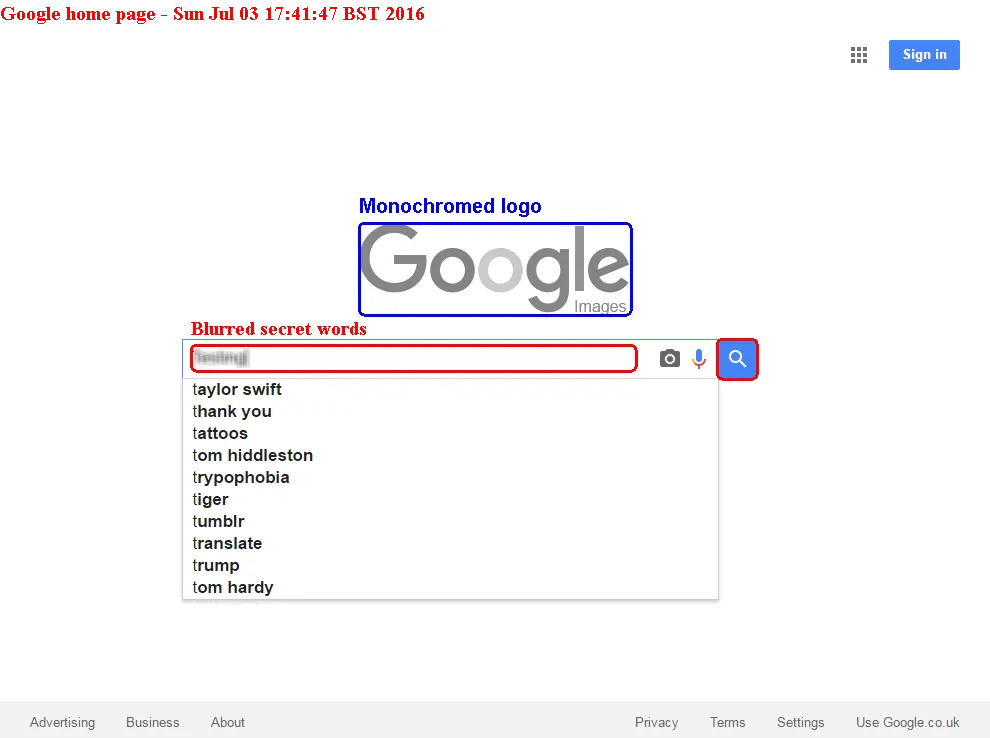
Selenium Shutterbug in Action: Highlighting Test Failures with Monochrome Logo and Blurred Input for Clear Reporting.
Accessing Selenium Shutterbug via Maven Central
Integrate Custom Screenshots with Selenium Shutterbug into your projects with ease using Maven Central. Here’s the Maven dependency for quick setup:
<dependency> <groupId>com.assertthat</groupId> <artifactId>selenium-shutterbug</artifactId> <version>x.x</version></dependency>Setting Up Selenium Shutterbug with Gradle
For Gradle users, incorporating Custom Screenshots with Selenium Shutterbug is straightforward. Simply add the following line to your Gradle build:
compile 'com.assertthat:selenium-shutterbug:x.x'Join the Open Source Community of Selenium Shutterbug
Custom Screenshots with Selenium Shutterbug is an open source project, proudly developed under MIT license and hosted on Github. We welcome and value contributions from the developer community. Find out how you can contribute and be a part of this innovative project here.